

Skin Works
Members
-
Joined
-
Last visited
Everything posted by Skin Works
-
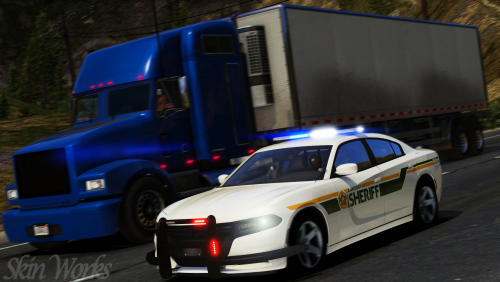 No caprice currently. I am waiting until Kane and Cj release the next version of there Caprice.
- 15 comments
- 8 reviews
-
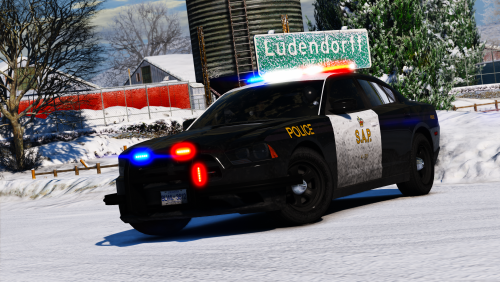 Its by the same people so I can only assume they haven't changed the template.
- 12 comments
- 6 reviews
-
-
-
 YES! Can't wait for this. Thanks for all your hard work.
 -
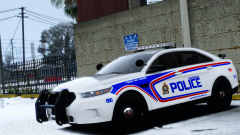
From the album: Skin Works Designs
© Skin Works
-
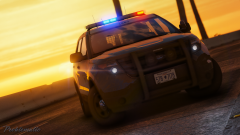 Damn. Wish I knew what was happening.
 -
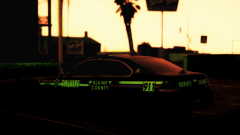 Man... still wishing we could have the reflective textures without the help of photoshop. Awesome man!
 -
The latest 2.65... I got it off darkmyers website once and it still has the same version up. Thank god I saved seeing as I can't get it again. Edit: its frustrating because I love the saturation of MVGA.
-
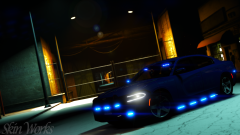
From the album: Skin Works Designs
© Skin Works
-
I will have to give that a try. Auto installers never really seemed to mess anything for me but maybe this is the one. Cheers man. Edit: Unfortunately manual install did not work. No idea what the issue is. It wasn't happening before then I reinstalled and now flickering even when out of a car and walking around.
-
I get screen flickering with the emergency lights. BAD
-
God Damn! I wish I could get my MVGA to work. Stunning as usual.
-
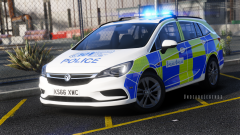 And yet the screenshot is lovely.
 -
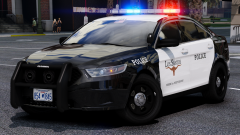 Love the lights, light setup. Very nice!
 -
God yes! YES! YES!
-
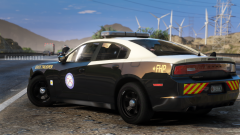 Ugh. I can't get MVGA. I signed up for his website, forgot my login then nothing. I have received no emails or anything and I can't sign up again as it says I have already signed up. Pretty annoying.
 -
-
Yeah... Will add today. I just hate this currently, have to do like 3 or 4 2016 explorers and a couple 2013/14 explorers... come on people make the best one and share.
- 15 comments
- 8 reviews
-
-

- 2
-
-
-
Looks great man. Any ENB at all?
-
Damn! Graphics?
-
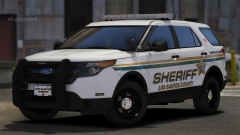 Soooo... still wanting this.
 -
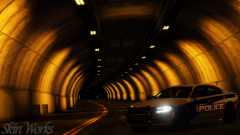
From the album: Skin Works Designs
© Skin Works
-
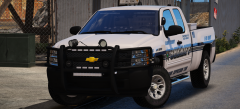 Good god! Yes please!