



DarenTichenorJr
Members
-
Joined
-
Last visited
Everything posted by DarenTichenorJr
-
Can you add removing Zoom Aim / Look Behind, both on foot and in vehicle? Thanks for you work!
-
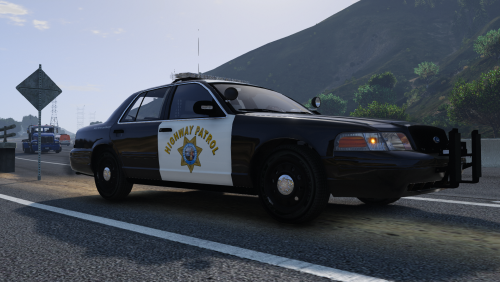 There are no default highway vehicles other than the policeb... You can add more vehicle slots.
- 44 comments
- 7 reviews
-
Thanks Thanks for working with me, and thanks for your help!
-
Sorry for all of the confusion. This is what I'd like to remove: Both On Foot & In Vehicle: Character Swap Phone Interaction Menu Only On Foot: Talk / Call Taxi Only In Vehicle: Aim / Shoot Swap Weapon Horn Radio Hopefully that clears up all of the confusion. Thanks!
-
My car exploded but siren continued. Would it be possible for you to make it detect that and turn of the siren? Also, Would be cool if you could make the players use the old horn honk animation so that it still does the animation if you've changed your honk keybind.
-
X is select weapon & DpadLeft is the Radio. And to answer your question, Yes, Thats correct.
-
I found an issue with version 0.2.0.1. I set my unit to 1 Baker 04 in the LP Config Editor but dispatch would just say 1 or sometimes 1 04. To fix this I had to rename the audio clip BOY.wav in Grand Theft Auto V / LSPDFR / Police Scanner / LPCallouts Audio / Unit Type to BAKER.wav. It appears you need to fix the phonetic alphabet in the configuation file because it was looking for "Baker" which by default does not exist.
-
Thanks!
-
Apologies, I was thinking of Free My Controller and it's "LSPDFR" version. What I'd like is to disable everywhere: the Back / Select button, DPadDown (Press & Hold), DPadUp, DPadLeft, X. And to disable when in a vehicle: Left Stick, A, and LB.
-
Please make an LSPDFR version but without disabling the Headlights & Cinematic camera.
-
-
I tried that but it says 0 files available to download. It says that for all except the latest version.
-
Does anyone have an old version for Player Location Display from before the Map Toggle (that doesnt work correctly) was added? I'd be most greatful!
-
 Anyone have a copy of the old version they can share so I dont have to deal with this stupid size toggle?
- 221 comments
- 58 reviews
-
It works for me. Maybe try updating Scripthook V & Dotnet. http://www.dev-c.com/gtav/scripthookv/ https://github.com/crosire/scripthookvdotnet/releases
- 221 comments
- 58 reviews
-
-

- 1
-
-
Despite changing the ini, The map still toggles size when pressing down on the dpad. would love to be able to disable this.
- 221 comments
- 58 reviews
-
Can you make a LSPDFR version with "B" for the cinematic camera added back? Or even tell me what to change to the LSPDFR version to enable it myself? Thanks! and great job!
- 40 comments
- 16 reviews
-
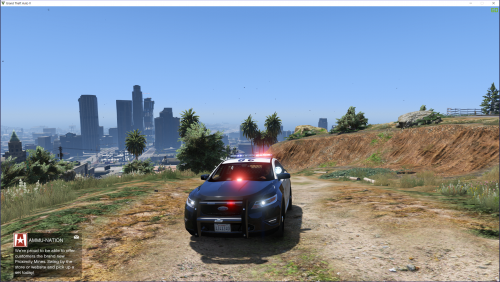 Great model! Using it as an addon, but can't get multiple liveries working tough. Any help would be much appreciated.
- 49 comments
- 10 reviews
-
-
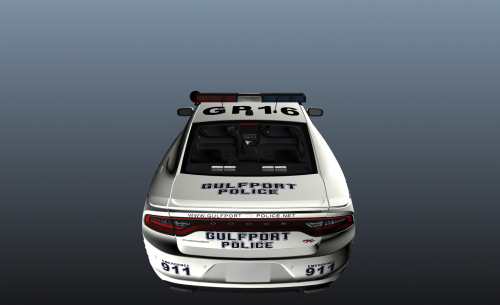 Ok I'll try it out. Personally I'd suggest using different models. In my opinion, for a CVPI, Impala, or Charger, Use BxBuggs123's vehicles. For Taurus, 2016 Explorer, F350, or Harley Davidson, Use TheHurk's vehicles.
- 4 comments
- 2 reviews
-
-
- 1
-
-
-
-
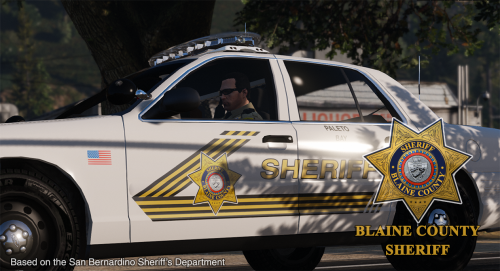 I'd love to see these skins for: BxBuggs123's CVPI & Charger TheHurk's F350 SSV, Taurus, 2016 Explorer, & Harley Davidson Electrglide I'd pay to have this skin for all these vehicles!
- 32 comments
- 8 reviews
-
I'd love to see these skins for: BxBuggs123's CVPI & Charger TheHurk's F350 SSV, Taurus, 2016 Explorer, & Harley Davidson Electrglide I'd pay to have this skin for all these vehicles!
- 44 comments
- 7 reviews
-
.thumb.png.c33c8cd785481766f7aac5383ce874af.thumb.png.b1a0adcb6941599a9c355f07dd812f30.png) As a Gulfport resident I'll definitely have to check this out! Have to change the lights to all blue though...
As a Gulfport resident I'll definitely have to check this out! Have to change the lights to all blue though...- 5 comments
- 1 review


.thumb.png.c33c8cd785481766f7aac5383ce874af.thumb.png.b1a0adcb6941599a9c355f07dd812f30.png)