SHOME95
Members
-
Joined
-
Last visited
Everything posted by SHOME95
-
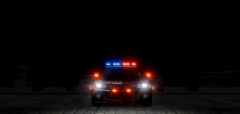 evi's camaro ftw
 -
theres no issues in multiplayer it works jsut fine
-
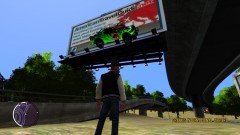 lol yea it was a fluke but cool pic either way
 -
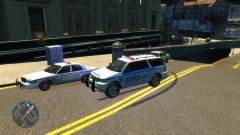
randomness
-
From the album: mikes random stuff
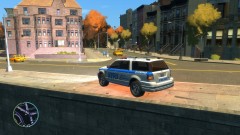
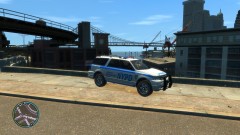
now how the heck did that get up there t-rex maybe?? -
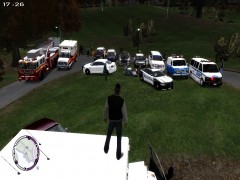
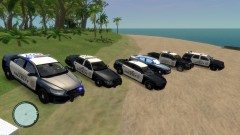 173.242.117.180:9010 our finsihed car pack minus fire depatment not pictured
 -
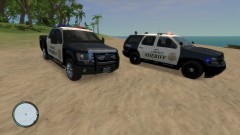 MY FAVORITE PIC join us on liberty-law-enforcement.teamspeak3.com
 -
OUR NEW CAR PACK PLZ JOIN US
-
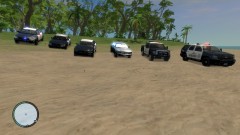
From the album: LLE CLAN
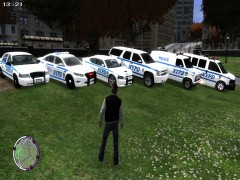
ALL CARS -
From the album: LLE CLAN
2013 F150 AND 2012 TAHOE -
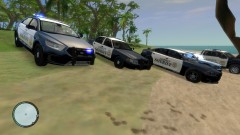
From the album: LLE CLAN
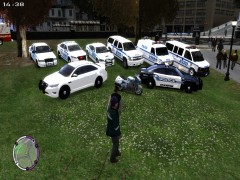
2013 TAURUS 2011 CHARGER AND CVIC -
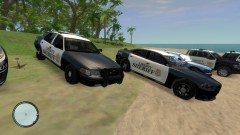
From the album: LLE CLAN
CVIC AND CHARGER -
From the album: LLE CLAN
ALL CARS -
your processor is nto the issue its ram and video card a good 2 gb card pci express would be good ddr3 or better. for your ram i went from 4 to ten and its a vast improvement just my 2 cents
-
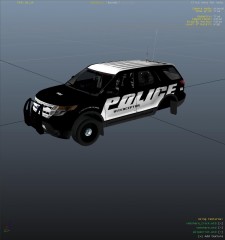
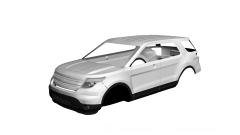
u are in luck if u got evi's explorer it may fit bpm's or undercoverchickens truck not sure
-
and it has to be in abc order in the ini
-
use the 2010 taurus sho line on page 1
-
dual core with 3 gb ram could be better this is his pc http://www.newegg.com/Product/Product.aspx?Item=N82E16883109040 Graphics GPU/VPU Type NVIDIA GeForce 6150 SE Graphics Interface Integrated video
-
again dude run as administrator and check properties for your gta folder make sure its unchecked read only it is only your tazer that wont work if u install it this way
-
-
the dsf cvpi is the proper size try parking shaefft's car next to a taurus lol not right
-
i didnt say i support it either way just enjoy the model thx visiible dang new kids slingin words
-
the model i believe was converted anyway but who cares enjoy the model guys
-
wow yall didnt look very hard here ya go credit bpm 3 models marked unmarked slicktop http://www.mediafire.com/?d6d3d83kkm4amon
-
disable read only for that file