


Officer19
-
Joined
Everything posted by Officer19
-
-
 Love it so so much, Thanks!
 -
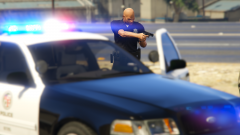 I have already changed them as you can see in the photo BiG Thanks! Great Work Lund! I am sure that you have worked hard for this and i think we must say awesome :DDDDD
 -
-
 When you are not available to accept a callout with your partner :D That's me when i don't like to accept callouts :D
 -
-
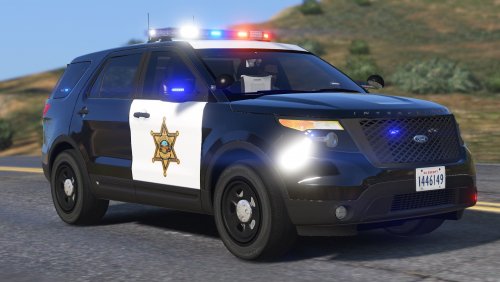 Thanks @Black Jesus! I will try it and i hope to get new experience cause i didn't use any Blaine County Sheriff before :D
- 65 comments
- 19 reviews
-
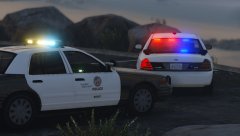
From the album: Officer19 WIP
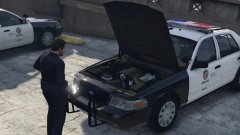
I got two CVPIs.The first one is suggested by @Lundy Thanks and its created by @FCVP71 Thanks ! The second one is unmarked cruiser with ALPR and its created by @Black Jesus Thanks! Thanks everybody joined in that work :D Love it! -

From the album: Officer19 WIP
-
-
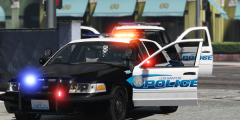 Alright.
 -

From the album: Officer19 WIP
-
From the album: Officer19 WIP
-
 Thanks!
 -
Just write on google : RadianceV I think you will find a link directed to GTA5-Mods.com.
-
Yeah sorry! I thought it was another LAPD Vic. :D but i want to add to my game the best CVPI or LAPD skins or a model could you suggest one ?
-
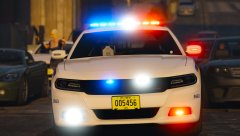 Post another skin for this Dodge :D Do you have ?
 -
Link it please Lundy i would like to patrol with it :D
-
The link doesn't access. @SerekgPL Do you have a nice texture to 2015 Dodge Charger ? I think you won't answer you will like nice comments like previous one :D I would like to get your opinion or get your nice texture to this Charger
-
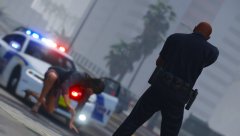
Hahah maybe one day :D xD I think you can take a look here to understand who's the arrested women :D
-
From the album: Officer19 WIP
@thegreathah's idea Love it so much! Nice merged colors :D Thanks!© LASD Crown Vic
-
I just suggested to but i didn't say that he MUST but it okay !
-
Your ram is acceptable but your GPU needs to be upgraded so try to find out new one. LCPDFR/LSPDFR don't need specs, i think we can say RAGEPluginHook needs specs (we could not say that cause the both RPH and LCPDFR/LSPDFR don't need specs), your game(s) that needs specs (EX:Grand Theft Auto V , Fallout 4 , Mafia III...etc) nothing called specs for mods or plugins so if you have low FPS and your game lags you have to get new GPU and i suggest to check your requirements from here : http://www.game-debate.com/games/index.php?g_id=1308&game=Grand Theft Auto V -Go down then you will see something called "Can I run Grand Theft Auto V" from there you will test and check your specs. Do you have anything to ask about? @Starmix will go with it better than me, but i suggest to change your GPU and this link to check more and more your specs and if anything other that your GPU needs o be upgraded or not.
-
-
From the album: Officer19 WIP




