



KoalaScars
-
Joined
-
Last visited
Everything posted by KoalaScars
-
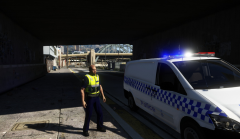
From the album: Victoria Police / State Highway Patrol
-
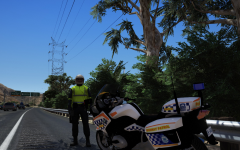
From the album: Victoria Police / State Highway Patrol
-
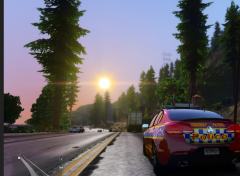
From the album: Victoria Police / State Highway Patrol
-
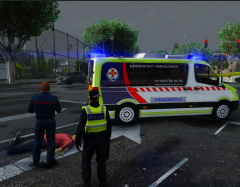
From the album: Victoria Police / State Highway Patrol
-
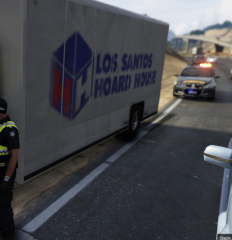
From the album: Victoria Police / State Highway Patrol
-
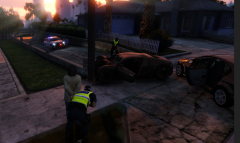
From the album: Victoria Police / State Highway Patrol
-
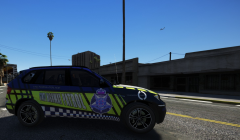
From the album: Victoria Police / State Highway Patrol
-
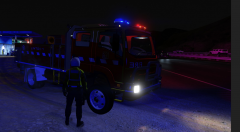
From the album: Victoria Police / State Highway Patrol
-
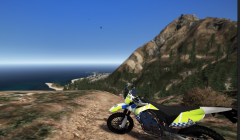
From the album: Victoria Police / State Highway Patrol
-
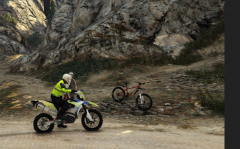
From the album: Victoria Police / State Highway Patrol
-
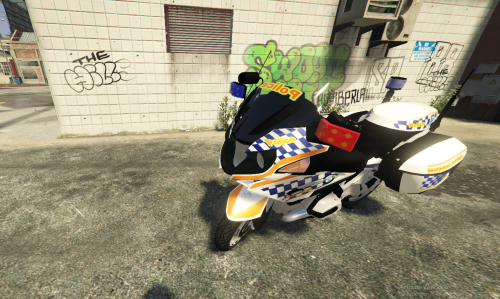 Hey mate, Yeah the texture file i used was some american one so the actual texture is mostly white. I might replace it soon for next release.
 -
Progression of my Toyota Hilux 2017 SR5 Tray civilian version.
-
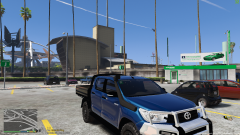 Desktop Screenshot 2018.02.07 - 20.42.40.38.png
-
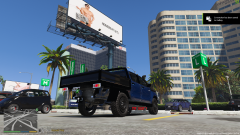 Desktop Screenshot 2018.02.07 - 20.42.15.24.png
-
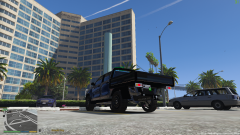 Desktop Screenshot 2018.02.07 - 20.42.10.37.png
-
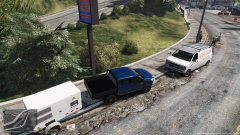 Desktop Screenshot 2018.02.07 - 20.38.07.00.png
-
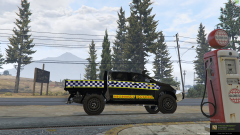 More.. + fictionally Highway Patrol
-
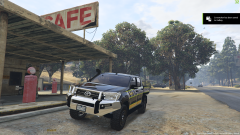 More.. + fictionally Highway Patrol
-
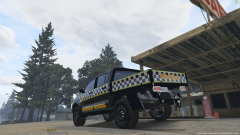 More.. + fictionally Highway Patrol
-
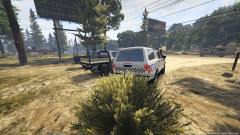 More.. + fictionally Highway Patrol
-
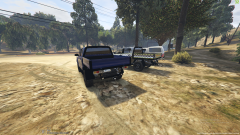 More.. + fictionally Highway Patrol
-
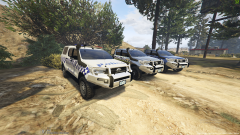 More.. + fictionally Highway Patrol
-
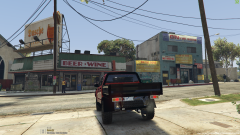 WIP Hilux SR5 Tray
-
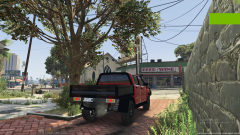 WIP Hilux SR5 Tray
-
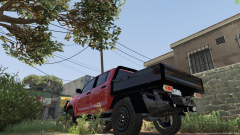 WIP Hilux SR5 Tray
-
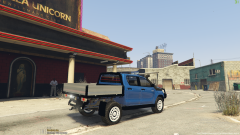 Hilux Progression Photos
-
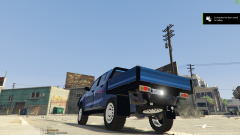 Hilux Progression Photos
-
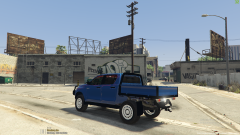 Hilux Progression Photos
-
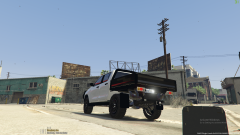 Hilux Progression Photos
-
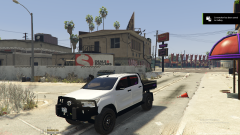 Hilux Progression Photos
-
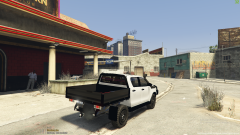 Hilux Progression Photos
-
-
From the album: WIP Hilux 2017 SR5 Tray
-
From the album: WIP Hilux 2017 SR5 Tray
-
From the album: WIP Hilux 2017 SR5 Tray
-
From the album: WIP Hilux 2017 SR5 Tray
-
I'm actually using 2, just to make sure but patchday10 and patchday8
-
So here's some in game photos. This is what it looks like when I spawn it This is it on a bodyguard But whats weird is remember I was saying i used different materials for L0 and L1. Well.... L1 L0 Its hard to tell but they are 2 different materials. So its using both L1 and L0 but still not showing on player.
-
Yeah thats what i thought too. Cheers mate
-
I originally was exporting both on w_pi_singleshot until I realised and changed it to w_pi_singleshot_hi and been exporting ever since. Do you suggest Exporting LO LODS as w_pi_singleshot_hi and then changing name back to w_pi_singleshot for L1 LODs? Because either way I exported it, was L0 LODs not working, I could see it at distance but not when holding it. I also think it might be an issue with the w_pi_singleshot+hi.ytd maybe? Like its not reading it and therefore no its invisible?
-
Sure mate With the Textures, the first on on the right is for L1 LOD and the last one or bottom right is for L0 LODs
-
From the album: WIP Hilux 2017 SR5 Tray
-
From the album: WIP Hilux 2017 SR5 Tray
-
From the album: WIP Hilux 2017 SR5 Tray
-
From the album: WIP Hilux 2017 SR5 Tray

