Quakex64
Members
-
Joined
-
Last visited
Everything posted by Quakex64
-
-
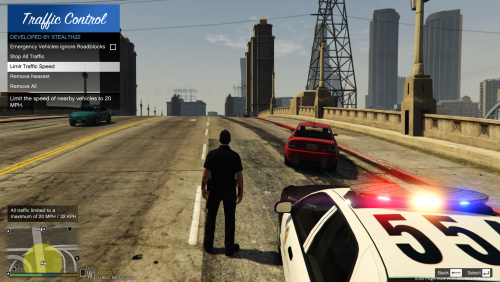 @9Lincoln20 latest game version is 877? have you not upgraded in a while?also latest RAGE is 47
- 338 comments
- 46 reviews
-
-
-
 [CONTROLS] MenuToggleKey=F12 MenuToggleKeyModifier=None MenuToggleButton=RightShoulder MenuToggleButtonModifier=DPadLeft change MenuToggleKey=F12 to MenuToggleKey=Z and MenuToggleKeyModifier=None to MenuToggleKeyModifier=LShift
- 138 comments
- 34 reviews
-
-
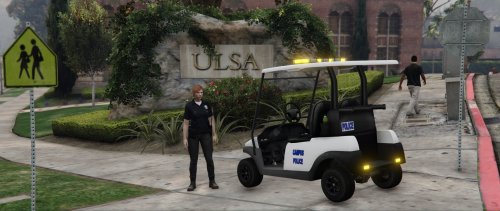 this works as a golf cart with the lights, or do I have to replace police2 or something to get it to work?
- 5 comments
- 4 reviews
-
 where is this Mega link you guys are talking about, and what free bandwidth thing are you talking about as well @7 KING 11 ?
- 2,346 comments
- 236 reviews
-
-
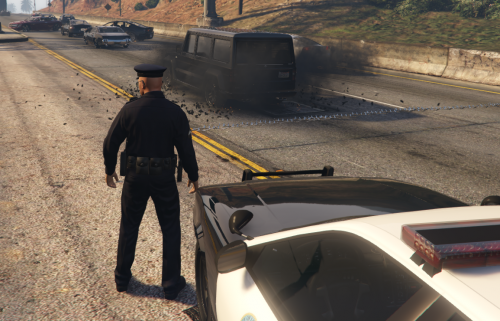 like I said in the traffic policer post, read the documentation that comes along with the mod and if you dont know how stuff works, dont bother
- 131 comments
- 20 reviews
-
 @dworley I would only recommend that you extract it on your desktop then move needed files to the gta v game folder and appropriate plugins, plugins/lspdfr folders @billiarboy read the supplied documentation that comes with the mod, it will show you keys and how to properly use them... if your friend installed everything for you, I would not start playing if you know nothing about lspdfr or even other mods...
- 3,646 comments
- 306 reviews
-
-

- 1
-
-
-
-
@WinstonC I dont remember but I thought it was always on the middle right hand side... download through mega or your browser were my options.. naybe that vould be because I have the Mega Chrome extension.. I dont really know... if there was a mega download link i can go to, id show you
- 2,346 comments
- 236 reviews
-
@WinstonC are you using IE or chrome? and make sure you click the download through browser option.
- 2,346 comments
- 236 reviews
-
ahh snap..... I hit tab like usual and I guess I am just used to the old version...and yes, ive read the readme so I know how to do it
-
-
 thats life
 -
well Ben, sent me a message and I have explained to him what I am doing here...
-
its gta v galleries and I can post what I want. thank you
-
(vanilla versions) public service package police fleet package park ranger package police
-
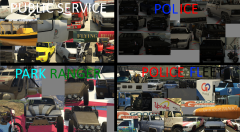
From the album: vanilla vehicles
-
you guys have no clue what I am doing with this so be quiet
-
normal mods (replacements) monster energy mods (a lot Ive made liveries for) power n water construction
-
utility3.jpg
-
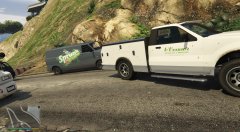 utility2.jpg
-
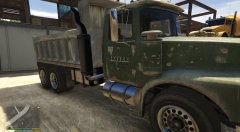 tiptruck2.jpg
-
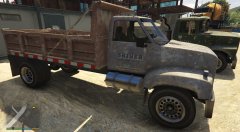 tiptruck.jpg
-
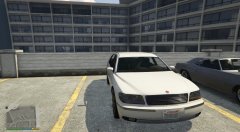 something.jpg penumbra maybe
-
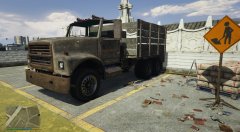 scrap.jpg
-
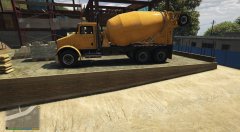 mixer2.jpg
-
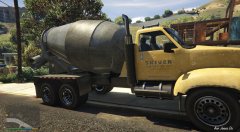 mixer.jpg
-
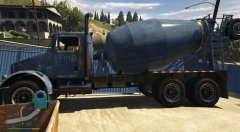 mixer-2.jpg
-
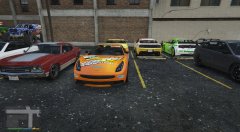 massacro.jpg
-
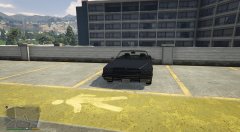 manana.jpg
-
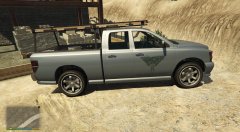 bison3.jpg
-
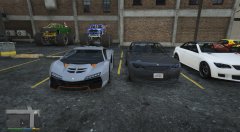 zentornosentinelsentinel2-maybe-.jpg
-
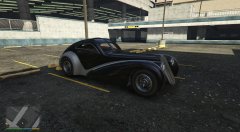 ztype.jpg
-
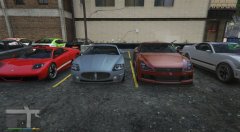 somethingelegy2-maybe-.jpg
-
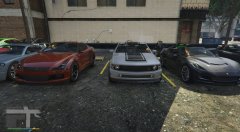 somethingdominatorcoquette.jpg
-
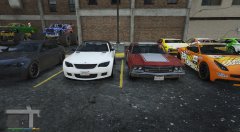 sabremassacro.jpg
-
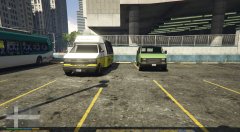 rentalbusburrito-ithink-.jpg
-
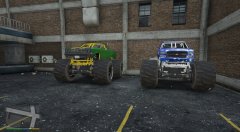 monstermarshall.jpg
-
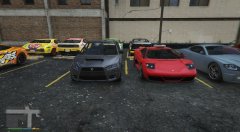 kurumainfernus.jpg
-
-
From the album: other
(vanilla versions) power n water package