thegreathah
Friends of LSPDFR
-
Joined
Everything posted by thegreathah
-
From the album: thegreatHAH's Screenshots
-
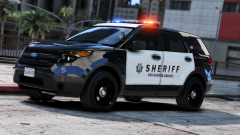
From the album: HAH's WIP Pics
-
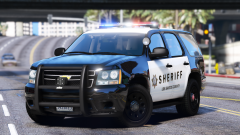
From the album: HAH's WIP Pics
-
.thumb.png.43fe043530d7dd789f2c112961b50ba1.png) Solid set up. Most of the complaints on this file seem to be "personal preference issues." There are no real issues with the car, the patterns, or the light setup. Awesome work.
Solid set up. Most of the complaints on this file seem to be "personal preference issues." There are no real issues with the car, the patterns, or the light setup. Awesome work.- 19 comments
- 7 reviews
-
-

- 4
-
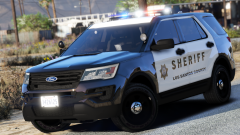
From the album: thegreatHAH's Screenshots
Note: No, these aren't based on Sac Sheriff, they are just placeholder skins.I really doubt anyone would know that number. Mostly because the situation was fairly fluid and there were likely hundreds perhaps thousands of emergency vehicles at the scene by the end. You could look at news coverage, but I'd say 20 vehicles would make for a fairly good recreation.https://en.wikipedia.org/wiki/Waco_siege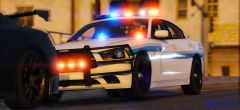 Nice work Maurice!
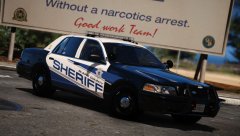 You're making yourself look really dumb right now. You realize these are also based off a real department right? Does that mean everyone who makes LAPD skins are copying, just because it's been done before? Not sure why you felt the need to call Him1250 a "mod thief" and back yourself up with no examples, other than showing the pettiness of yourself by responding like a 12 year old. It's called ad hominem when you immediately turn to arguing about someone's character rather than the issue that you brought up. Not sure how Miko (who obviously worked on these skins for a very long period of time) "stole" from you. In fact he even credited you for inspiration. Also, I don't understand why you decided to pick a fight on someone else's image, when you could've easily reported Miko's file (Which would have been a load of BS anyway), or commented on that file. To me, it seems you just want someone to argue and give you attention on the internet. That's pretty sad.
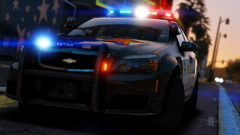 Now I've got to reinstall next gen shaders. damn it
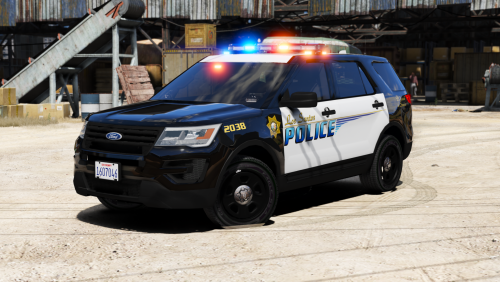 That's a game mechanic issue, and nothing any of us can fix unfortunately. It sucks.
- 208 comments
- 59 reviews
-
-
- 1
-
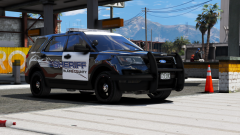
From the album: HAH's WIP Pics
Little mini-pack I'm working on to go with the LSPD pack. Beautiful skins by @BradM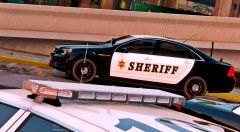 I like the look of the car. But I really hope you got permission to use Slendis's skins
Huh?
Maybe. I will be out of town the rest of the week, so it will come this weekend if at all.
I like the look of the car. But I really hope you got permission to use Slendis's skins
Huh?
Maybe. I will be out of town the rest of the week, so it will come this weekend if at all.- 208 comments
- 59 reviews
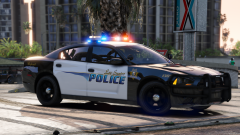
From the album: thegreatHAH's Screenshots
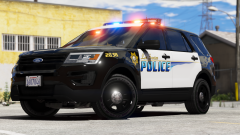
From the album: thegreatHAH's Screenshots
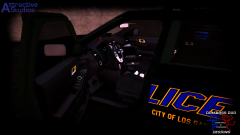 You hot bitch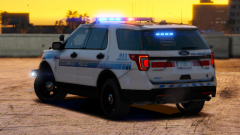
From the album: HAH's WIP Pics

.thumb.png.43fe043530d7dd789f2c112961b50ba1.png)