Betarays
Members
-
Joined
-
Last visited
Everything posted by Betarays
-
I'll have to check it out. I think the van might grab colors from the carcols file (similar to what the unmarked cruisers do). If that's the case, I'm not sure I'm adept enough to figure out how to texture it as a standalone (if it can even be done). I'm pretty new to textures in GTA- still kind of feeling my way around, but I'll take a look.
-
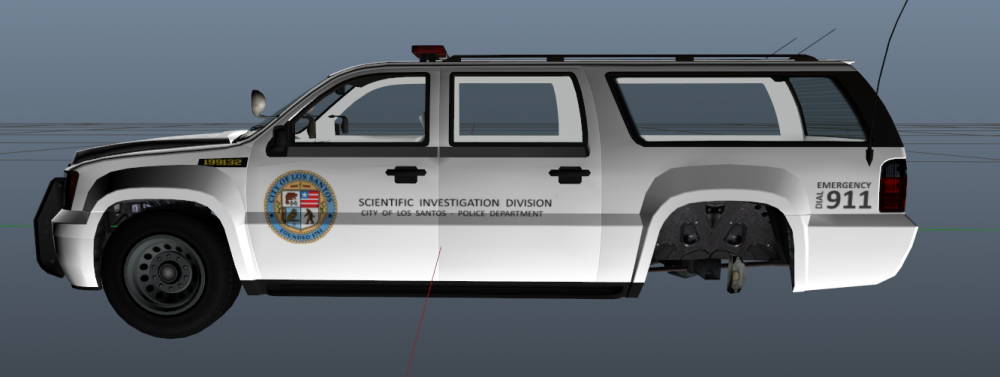
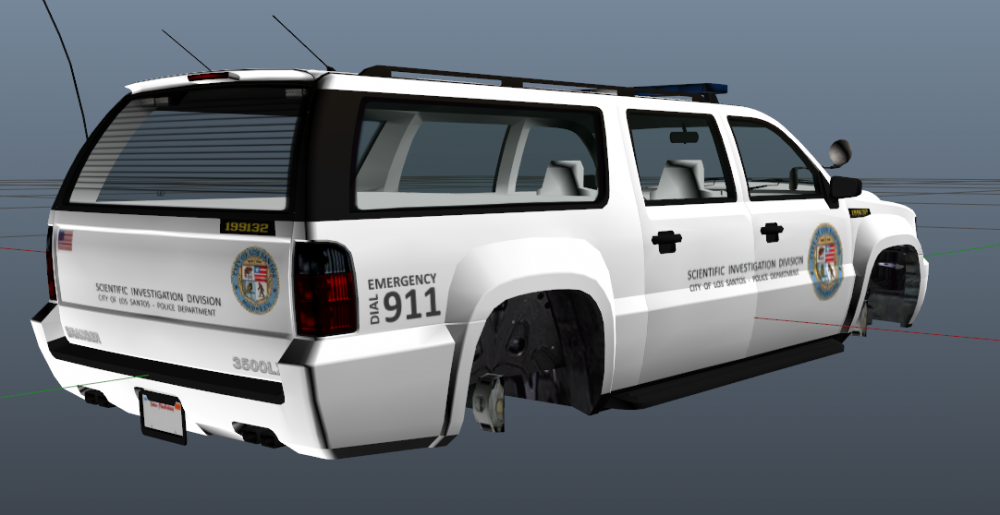
This sounds really cool. If you're interested, the LAPD's version of "CSI" is called the Scientific Investigation Division. I believe they usually roll around in pretty non-descript utility-type vehicles (pick-up trucks, etc) with minimalist logos. If you wanted to go with the Granger, maybe something like this would work? There's some limitations (right now) with how distinct you can make the textures without affecting other vehicles, but I'd be happy to help If you're interested.
-
-
From the album: Betarays Album
WIP -
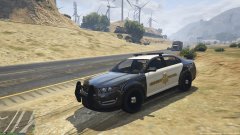
From the album: Betarays Album
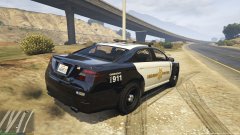
WIP SAHP Interceptor -
-
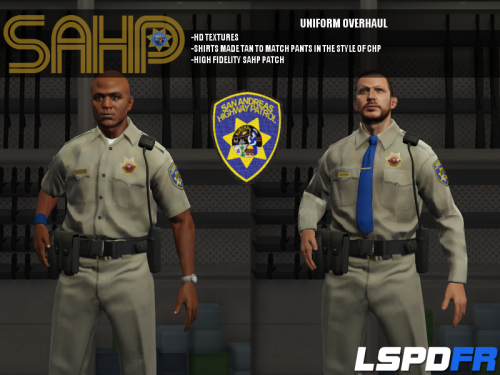 Excellent details and comprehensive package. Great work, thoughtful file packaging, and well supported by author. One of my favorites.
- 95 comments
- 17 reviews
-
-

- 1
-
-
-
-
-
-
-
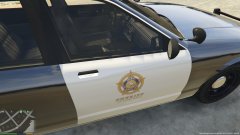 Modified LSSD door logo
 -
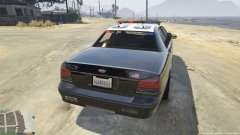 Working on a re-texture of the sheriff's cruiser.
 -
-
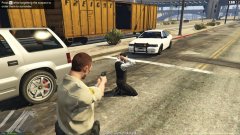 Followed a vehicle after observing him slide through a stop sign. Using Finkone's Police Radio mod the plate returned as a stolen vehicle. Backup was taking to long so approached subject after observing only one occupant in the vehicle. Backup arrived shortly after subject was handcuffed. Placed in the back-up vehicle for jail transport.