OfficerFive0
Members
-
Joined
-
Last visited
Everything posted by OfficerFive0
-
yup
-
edit. it seems i may not have it anymore, not really sure.
-
yea i have it to, i use adblocker but this site is whitelisted.
-
-
yea but do you have perms for it?
-
amen brotha #SquanchTheFederation
-
lincoln town car?
-
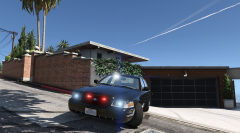 How exactly is this nypd?
 -
try using albos troubleshooter. itl check to see if everything is up to date and installed right
-
ive decided that before i start on anymore projects i should finish some of my older projects that ive thrown to the back. so expect an update on the lapd slicktop with much better equipment, and detective lapd cvpi,. and a few more releases. ive also been working on completely finishing my vision lightbar. heres it in a chp setup and for the equipement for the cvpi that i mentioned above, heres what ive done so far. modeled a new controller modeled a floor shotgun rack for the swat unmarked cvpi i also plan on making a new havis console, and a new laptop.
-
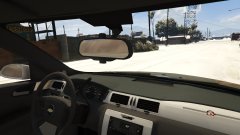 lol ive seen them enough to know what u mean.
 -
may want to fix that impala badge on the dash
-
you are using the wrong sirensettings use sirensettings1 not 13. 13 which is default to police and sheriff will rotate, on sirens 15-20. read this guide i made a while back, it should help you with each sirensetting and the lights. siren setting guide.txt
-
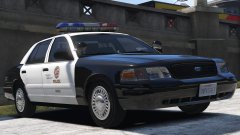 kewl modz
 -
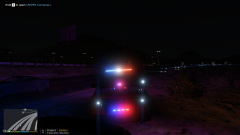
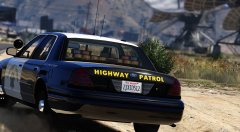
From the album: Five0 WIP
WIP SAHP Pack Taking full advantage of the Whelen Duo Legacy -
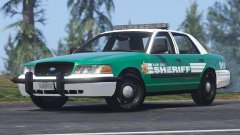 to add upon it, the pb5 seems a bit short compared to the picture
 -
lol, prbly should change the spec mapping for the flex fuel badge.
-
yea uploaded some more pics today. same problem
-
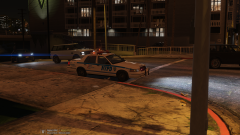 especially with the updated textures
 -
more images here http://imgur.com/gallery/LOgYA
-
From the album: Five0 WIP
was made in commemoration of 9/11. Still a WIP -
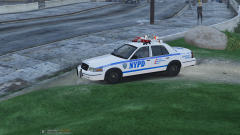
From the album: Five0 WIP
was made in commemoration of 9/11. Still a WIP -
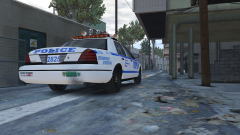
From the album: Five0 WIP
was made in commemoration of 9/11. Still a WIP -
 lol u should use the updated textures
 -
can u put some leds on it?