OfficerFive0
Members
-
Joined
-
Last visited
Everything posted by OfficerFive0
-
 perhaps sometime in the distant future, but for now, im too busy working on other projects
- 26 comments
- 12 reviews
-
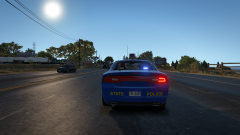
From the album: Michigan Mega Pack
-
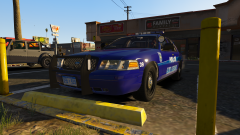 Both, there's one model with a static pb300, another with a spawning pb400
 -
From the album: Michigan Mega Pack
-
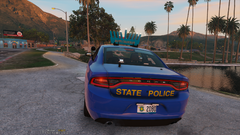 the led beacons are still taller. they use 3 stacked whelen Lin12 modules, (liberty/freedom corner modules).
 -
-
Well, the beacon has advantages that other lightbars dont. Mainly its size, which means that it has much higher visibility from afar. Even the older halogen beacons were very effective in this way.
-
-
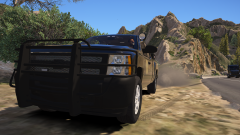
From the album: Michigan Mega Pack
-
They compensate for the beacon with added lighting in other areas: pushbar, mirror beams, side window, rear deck and license plates.
-
-
finished the L0 low profile stand going to the normal one next
-
working on the brand new Soundoff3 Rx2700
-
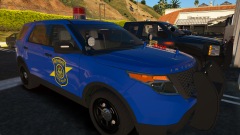
From the album: Michigan Mega Pack
-
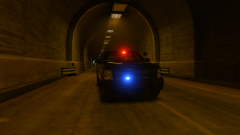
From the album: Michigan Mega Pack
-
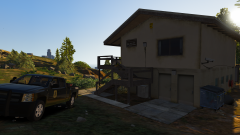
From the album: Michigan Mega Pack
-
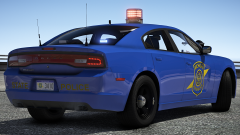 Same light, Unity Rv26 w/Whelen leds, modeled by me. pretty much everything in this pack is modeled by me.
 -
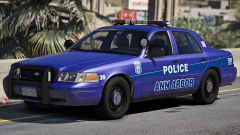
From the album: Michigan Mega Pack
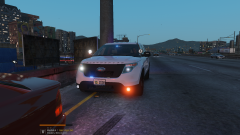
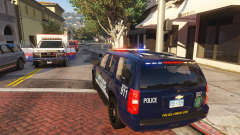
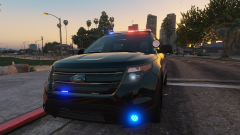
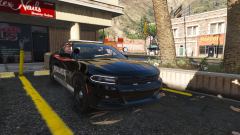
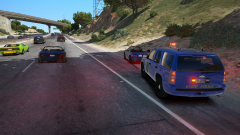
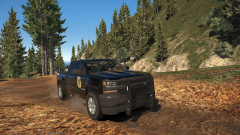
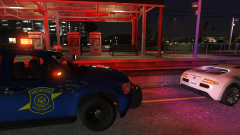
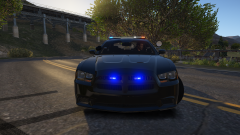
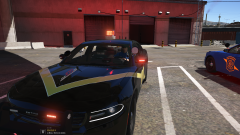
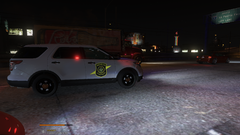
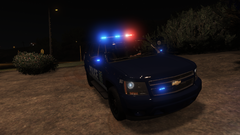
Working on a Michigan Mega Pack Includes Michigan State Police, Washtenaw County Sheriff, Ann Arbor Police, Ypsilanti Police and Michigan DNR Conservation -
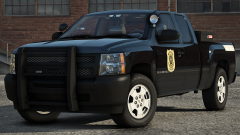
From the album: Michigan Mega Pack
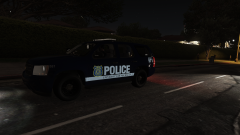
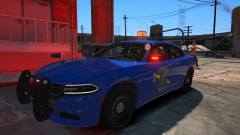
Working on a Michigan Mega Pack Includes Michigan State Police, Washtenaw County Sheriff, Ann Arbor Police, Ypsilanti Police and Michigan DNR Conservation -
From the album: Michigan Mega Pack
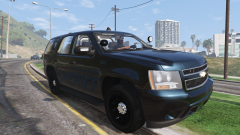
Working on a Michigan Mega Pack Includes Michigan State Police, Washtenaw County Sheriff, Ann Arbor Police, Ypsilanti Police and Michigan DNR Conservation -
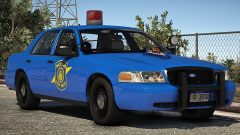
From the album: Michigan Mega Pack
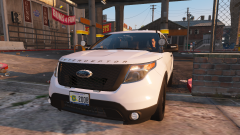
Working on a Michigan Mega Pack Includes Michigan State Police, Washtenaw County Sheriff, Ann Arbor Police, Ypsilanti Police and Michigan DNR Conservation -
Not a "rampage", it was a shooting, that happened to take place in the dorms, related to a domestic. and the victims weren't students. Only reason this became news is since it took place in a "school".
-
if you want the siren to be steady burn, then set rotate to false and flash to true. it may not be verbatim, as this is off of memory
-
no, then it would be on all the time. is the siren set to rotator or flash?
-
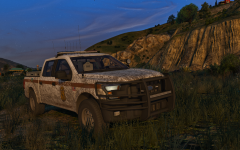 I mean, the 21tr is obviously superior, i should know.
 -
Long time since the last update. I still havent gotten around to testing out my lidar again, but ill get around to it, one day or another. currently working on some peds to go along with the state police in my mega pack. Some stuff will either be moved, modified, deleted or replaced.
-
-
Ill clarify it for you, the correct answer is New York




.png.869bd9a184d476f1a040342d48a6c0da.png)