



GravelRoadCop
Members
-
Joined
Everything posted by GravelRoadCop
-
I don't know if you have watched "Alaska State Troopers" but they have the same setup for their fleet.
-
 Sorry, buddy. Not in this version. It's not possible at the moment to have a Q siren. I made one but it's 5 secs long. I will be making a new version this month that will have many, many more sirens to select from. I hope some sirens that I will be including will be okay for FD.
- 316 comments
- 31 reviews
-
Leave on the fog lights mounted to the pushbar, it fits perfectly for rual patrol.
-
 fartknockr, I notice that none of your pics show spotlights installed. Will it be included ?
 -
Got any more pics ?
-
... and spotlights too ??
-
 both would be good.
 -
Does it come with template skin for us to create custom textures ?
-
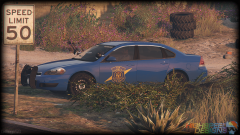 Will all of the LED products you have installed on this car light up ?
 -
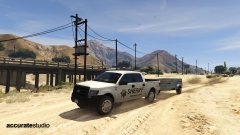 Cool. What can you tell us about it ?
 -
Oh, wow. Thank you for explaining it to me very clearly.
-
help me understand the differences between low and high version in your case ? Also, what kind of detailing in the interior should we expect ?
-
Great job ! Monitoring this thread now.
-
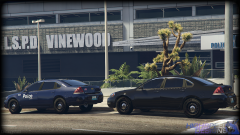 fed signal vector ;)
 -
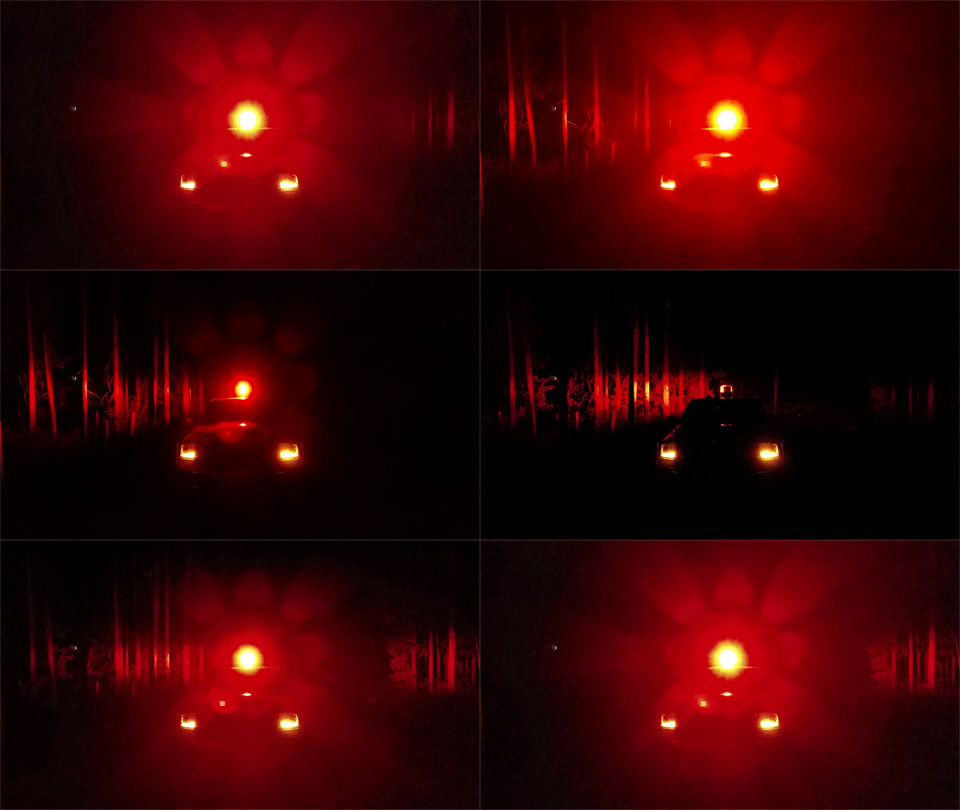
_(23).jpg.d210859d385f7c593190ecefa980dc30.jpg) Hey Doppler, this looks sharp ! How'd you achieve the LED bloom brightness ? Did you tweak it through visualsettings ?
Hey Doppler, this looks sharp ! How'd you achieve the LED bloom brightness ? Did you tweak it through visualsettings ? -
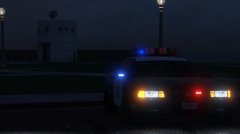 Put your pitchforks down. I only took the pics for the Yard. Look, if you really have to make a report because of a little credit error and waste people time, talk to me before you go down there. I know the Yard worked on this model and i know Rockstar originally made this model. This is not what im trying to project here. @ admins stop wasting my time with your reports if you could just simply edit the description for me. No need to go the whole 9 yard with formalities and PMs and such. Jeeze.
 -
-
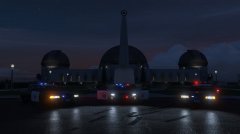 Coming soon to your local SAHP office. Model made by ROCKSTAR ( you happy now ? ) and edited by the Yard1.
 -
Coming soon to your local SAHP office. Model made by ROCKSTAR ( you happy now ? ) and edited by the Yard1.
-
 Coming soon to your local SAHP office. Model made by ROCKSTAR ( you happy now ? ) and edited by the Yard1.
 -
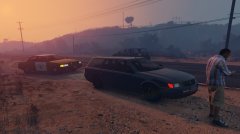 Very soon, your local SAHP will be receiving their brand new surplus of updated vapid cruisers.
 -
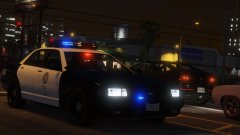 It's a oddity, for sure, but still works ! Also, good idea on the CHP light set up.
 -
No, he doesn't have the CVPI. He basically slapped his name on Bxbugg's video that he recorded himself. So i don't know why Prophet needs to add his name on it ....
-
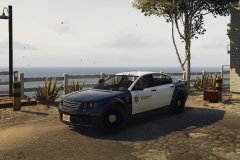 Looks like the Chevy Caprice !
 -
Hows your charger coming along ?


_(23).jpg.d210859d385f7c593190ecefa980dc30.jpg)
