Skip to content
View in the app

A better way to browse. Learn more.

LCPDFR.com

A full-screen app on your home screen with push notifications, badges and more.

To install this app on iOS and iPadOS
  1. Tap the Share icon in Safari
  2. Scroll the menu and tap Add to Home Screen.
  3. Tap Add in the top-right corner.
To install this app on Android
  1. Tap the 3-dot menu (⋮) in the top-right corner of the browser.
  2. Tap Add to Home screen or Install app.
  3. Confirm by tapping Install.

inbetweendays

Members
  • Joined

  • Last visited

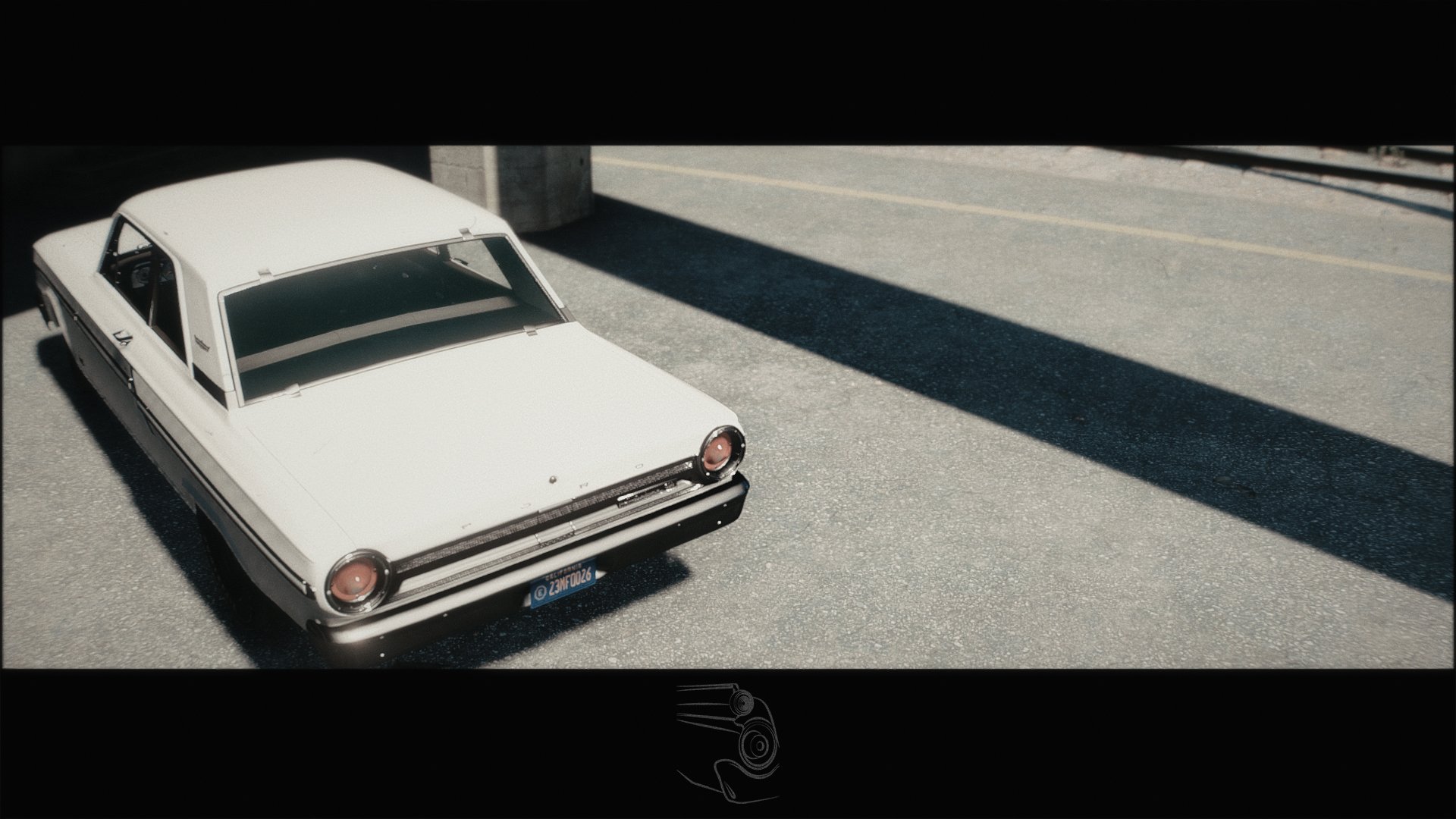
  1. inbetweendays changed their profile photo
  2.    inbetweendays reacted to a gallery image: Angela
  3.    inbetweendays reacted to a gallery image: Clouds over Dinuba.
  4.    inbetweendays reacted to a gallery image: Social Justice
  5.    inbetweendays reacted to a gallery image: Damn aliens got away...
  6.    inbetweendays reacted to a gallery image: 20171030192558_1.jpg
  7.    inbetweendays reacted to a gallery image: 20171103142058_1.jpg
  8.    inbetweendays reacted to a gallery image: Wasteland
  9.    inbetweendays reacted to a gallery image: 🅱-body
  10.    inbetweendays reacted to a gallery image: 20171104185651_1.jpg
  11.    inbetweendays reacted to a post in a topic: Lundy's sick ass gta v mods
  12.    Hastings reacted to a post in a topic: Your best LSPDFR screenshots?
  13. Scuderio started following inbetweendays
  14.    Carrythxd reacted to a post in a topic: Your best LSPDFR screenshots?
  15.    RobertTM reacted to a post in a topic: Your best LSPDFR screenshots?
  16.    gooface1014 reacted to a post in a topic: Your best LSPDFR screenshots?
  17. New PSU, GPU, monitor... Now I only need some more RAM and then I finally upgraded my old not-so-great PC. Still figuring out what style to go for (and which visual mods to use), but anyway, here's four brand new screenshots.
  18.    11john11 reacted to a post in a topic: Lundy's sick ass gta v mods
  19. I can barely handle the excitement! <3

Account

Navigation

Search

Search

Configure browser push notifications

Chrome (Android)
  1. Tap the lock icon next to the address bar.
  2. Tap Permissions → Notifications.
  3. Adjust your preference.
Chrome (Desktop)
  1. Click the padlock icon in the address bar.
  2. Select Site settings.
  3. Find Notifications and adjust your preference.