
JordanDevlin
Members
-
Joined
-
Last visited
Everything posted by JordanDevlin
-
-
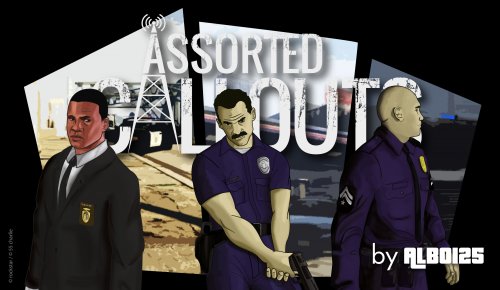 It's really cool callout i recommend it, happy to see that it is available for all today thank you Albo!
- 1,081 comments
- 166 reviews
-
-

- 1
-
-
-
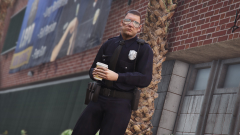
From the album: Welcome officer !
-
 Alright cool. :)
 -
Thanks ! It's alright for the picture, show me the model what you want and i can make in few hours ;)
-
From the album: Obey & Survive
-
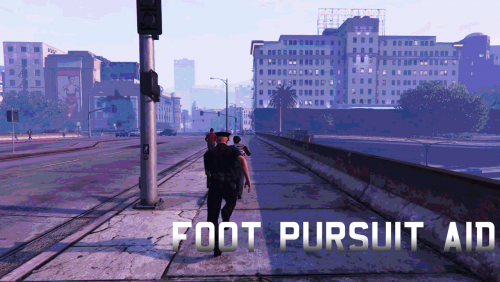 I have the problem in my last video, very long pursuit... Thank you very much, it's always a pleasure to install your mods they are great!
- 40 comments
- 20 reviews
-
-
- 2
-
-
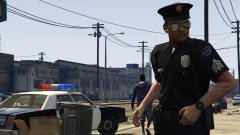 Car & Aerodynic <3 !!!
 -
-
-
-
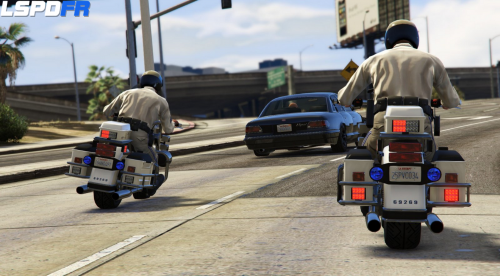 Thank you dude!
 -
-
-
-
-
-
-
Problème résolu à force de chercher ! Le ELS c'était mal installé, j'ai refait l'installation en remplacement les fichiers, et j'ai pu redémarrer le mode.
-
Bonjour, J'ai installé il y a peu le mode LCPDFR, mais malheureusement au moment du lancement dans GTA IV (Alt + P) le mode ne démarre pas. Je pense avoir essayé toutes les solutions possibles pour pouvoir le lancer : désinstaller le mode et le réinstaller, installer le mode manuellement ou automatiquement, installer le dernier patch, mais malheureusement rien ne marche.. J'avais déjà installé les versions précédentes du LCPDFR sur mes autres ordinateurs et je trouvais ce mode fort intéressant ! Avez-vous s'il vous plait des solutions à mon problème ? J'aimerais vraiment pouvoir y rejouer. Je vous remercie d'avance.