CharlesBarnes1087
Members
-
Joined
-
Last visited
Everything posted by CharlesBarnes1087
-
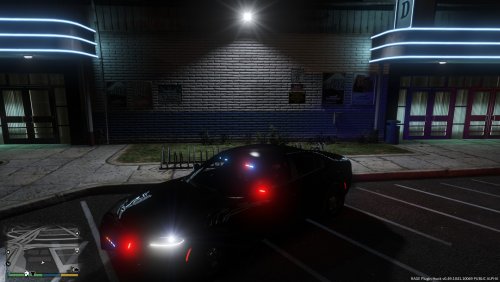 I can do that I just need some flags to mess with, any color u wanting for the car?
- 6 comments
- 3 reviews
-
I made it just for people that doesn't want to bother with the making one, I do take request
- 6 comments
- 3 reviews
-
-
if yall want me to make a good one let me know, it was just a simple skin I made for the car, I got tired of seeing sheriff skins so here you go. if u want to talk to me personally u can join this teamspeak bsa185a.ts.nfoservers.com
- 6 comments
- 3 reviews
-
-
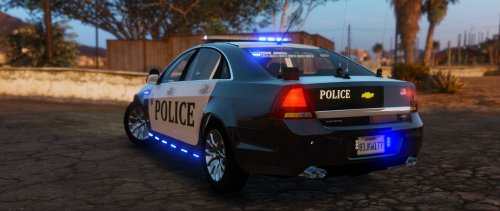 hey I have two request, can u put the black wheels one it like the one picture shows, and can you plz do a lapd skin with red and blue els?
- 32 comments
- 14 reviews
-
I love how u made this vehicle, but I have one request, can u make it with red and blue lights??
- 32 comments
- 14 reviews
-
-

- 4
-
-
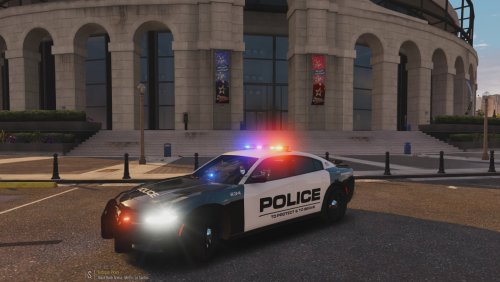 hey I like the skin for the car, but however I'm looking for the lapd one, can you make one plz???
- 2 comments
- 2 reviews
-
-
okay i had rc2 and i need anyone to plz contact my number letting me know who u are and where u got my number, my number is -snip-, i do need help to install the new lcpdfr 1.0(a and b) or what i need to install to play with the newiest updates, plz anyone help out and i promise i will play with u