
BlueSteelShield
Members
-
Joined
-
Last visited
Everything posted by BlueSteelShield
-
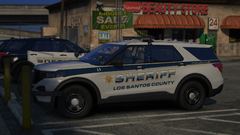 Varicals Beverly hills police pack
 -
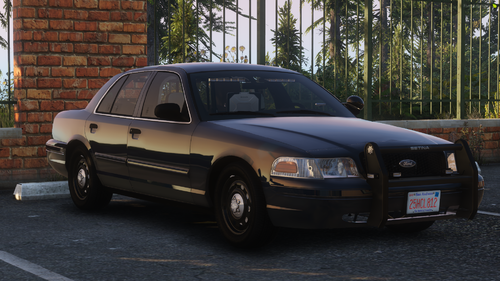 Is it possible to add a steady burn on the front and make it red/blue for Cali spec?
- 10 comments
- 1 review
-
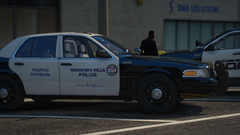 Damn, making Rockford Hills based off of Inglewood? I'm sure Rockford would find that quite offensive, hahahaha.
 -
 2/5 stars for my personal review. There's many issues with this siren, such as; - The wail doesn't loop correctly, there's a tick at the loop phase and it's because of the movement from the video. Try referring to a video where the vehicle and camera are at the same location throughout the whole wail. It is also high pitched. - The yelp is very high pitched, fast, and it just doesn't sound good at all. I understand that in-game it will sound a little different, but your file sounds very off compared to the video you used. - The airhorn is also high pitched, not much else. But at least you got the siren to work in game. 🙂
 -
.jpg.a22e72397794030ca54eaedf4c5bd17a.jpg)
From the album: Grand Theft Auto V
-
-
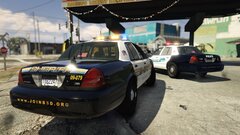 I remember your GTA IV work, still outstanding as always.
 -
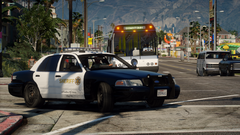
From the album: FiveM
SQUAT -
-
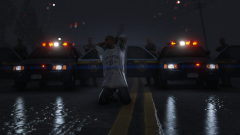
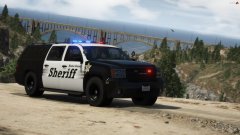 Moments before you were being shot at.
 -
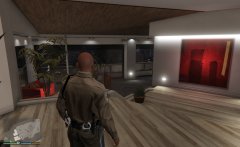 badass.
 -
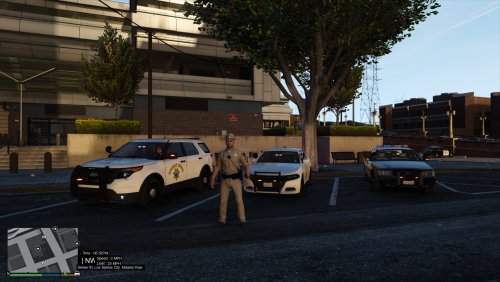
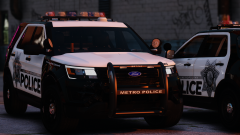 Any future plans with NHP?
 -
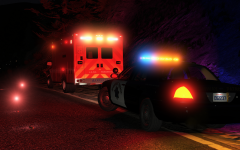 No smoke from the flare, what kind of mod is that?
 -
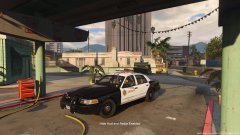 Those are extremely old... lmao, at least a 2002-
 -
-
Whats wrong with those headrests?
-
-
-
-
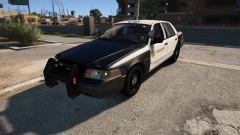
-
-
-
-
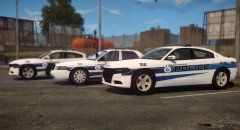 Love it.
 -




.jpg.a22e72397794030ca54eaedf4c5bd17a.jpg)