
strike
Members
-
Joined
-
Last visited
Everything posted by strike
-
![Chicago through the years [CPD PACK] released](//s3-gallery.int-cdn.lcpdfrusercontent.com/gallery/album_771/sml_gallery_24493_771_2181090.png) Duh, may I know where to download it?
Duh, may I know where to download it? -
-
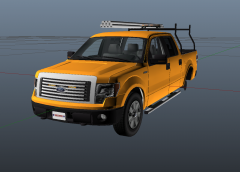 Looks promising :)
 -
 Nice, keep it up with these good pictures :)
 -
It looks pretty good, maybe I would add some more details but it's not bad so far:)
- 4 comments
- 4 reviews
-
![[SkiN]Toronto EMS](//s3-gallery.int-cdn.lcpdfrusercontent.com/gallery/album_1613/sml_gallery_79222_1613_477229.jpg) Sexy truck...
Sexy truck... -
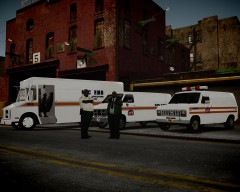
From the album: Strike's
- Well, showcased in the above picture, a generic NYC EMS Chevrolet Step Van, a Borough Supply Unit GMC Vandura van and a Ford Econoline. - Below. Close view of the NYC EMS Econoline van. A pretty rare unit I'd say. I accidentaly found one in a video of Times Square in the 1980s; so far I had just seen GM vans... Above. Staten Island University Hospital Econoline Ambulance (old paint job). PS. For those who asked me about the NYC EMS peds, I'm sending you soon;) -
FFS... Civilian brutality? Why is there the criminal term for, then? You've already lost your credibility trying to play down the police brutality previously...
-
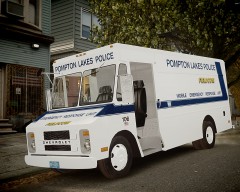
From the album: Strike's
Meh, just some texture I've made. I'm kinda dissapointed with it, tho. There's a small mistake in the license plate that I missed when I took the screenshots: instead of SP there should be a MG; I used a plate I made for a NJSP cruiser. Enjoy the screenshots anyway, lol... -
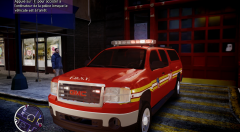 Regarding the paint job, correcting the small stripe under the light. About the model, it looks quite good, maybe adding license plate would be good.
 -
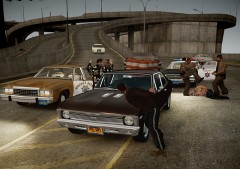 Well, in the screenshot can be seen, as traffic cars, a 1979 Lincoln Continental, a 1979 Plymouth Volare, a 1985 Cadillac Brougham and a 1969 Chevy Nova (I think the one by Mr.Bolleck). The police vehicles are a 1983 Impala by GFXLE and a 1987 Ford LTD (it's actually a taxi without the sign, the police version hasn't been released yet). Both skins made by me (CHP and Riverside County Sheriff), though unreleased.
 -
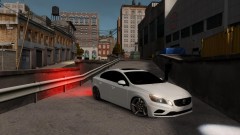 Was drunk or something the author when he decided to add those wheels?
 -
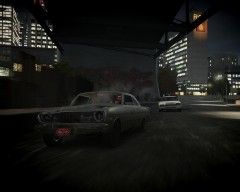
From the album: Strike's
Die Young. -
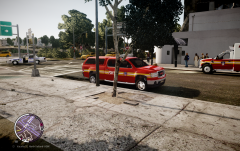 +1 For that;)
 -
I was looking for a cool picture, taken during the 1992 LA Riots, of some LAPD officers riding a Ford LTD with the shotguns out of the windows, but seems it has been taken down or something because I can't find it anywhere and I'm pissed off...
-
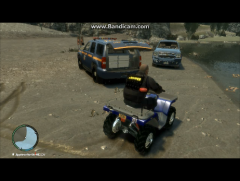 That's cool, man.
 -
-
-
-
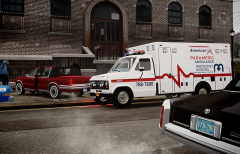
From the album: Strike's
This morning, a driver lost the control of his car, presumably due to the wet road, running over a group of people who were waiting for the bus and, right after, crashing against a fence. While two of them suffered of minor injuries (one of them has already been discharged) a third one got trapped between the car and the fence. She had to be rescued by the NYPD ESU and at the moment is fighting for her life in the intensive care unit of the hospital. --- "Territorial Dispute" After a day working, the young ambulances meet in a lot to fight for the alpha position of the flock of ambulances and the control of the territory... -
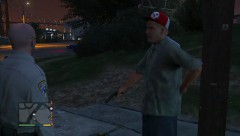 Yo, are there vigilante missions?
 -
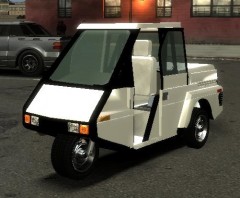 That’s cool;)
 -
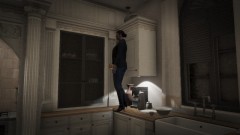 That’s an odd way to use the frying pan...
 -
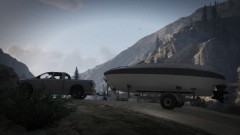 Wow! So boats can be towed, that's what I wanted to know! Shame about the truck with the trailer dissapearing, though... I seriously can't wait to play this game :D
 -
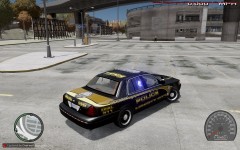 Awesome!
![Chicago through the years [CPD PACK] released](http://s3-gallery.int-cdn.lcpdfrusercontent.com/gallery/album_771/sml_gallery_24493_771_2181090.png)
![[SkiN]Toronto EMS](http://s3-gallery.int-cdn.lcpdfrusercontent.com/gallery/album_1613/sml_gallery_79222_1613_477229.jpg)