Skip to content
View in the app

A better way to browse. Learn more.

LCPDFR.com

A full-screen app on your home screen with push notifications, badges and more.

To install this app on iOS and iPadOS
  1. Tap the Share icon in Safari
  2. Scroll the menu and tap Add to Home Screen.
  3. Tap Add in the top-right corner.
To install this app on Android
  1. Tap the 3-dot menu (⋮) in the top-right corner of the browser.
  2. Tap Add to Home screen or Install app.
  3. Confirm by tapping Install.

MSA

Modding Security Agency (MSA)
  • Joined

  1. GonzaDev112 started following MSA
  2. LAPDFR GET started following MSA
  3. EricTheHeretic started following MSA
  4. AstroBurgers started following MSA
  5. Faya started following MSA
  6. Tobasi started following MSA
  7. Master Cheef started following MSA
  8. officershade started following MSA
  9. Ammo Cammo started following MSA
  10. Zebz started following MSA
  11.    Burnswood reacted to a post in a topic: 'Good Music' Thread
  12.    Lee10 reacted to a post in a topic: 'Good Music' Thread
  13.    Original Light reacted to a post in a topic: Is ineseri illuminati?
  14.    goldencandy610 reacted to a post in a topic: Rekking ineseri
  15.    goldencandy610 reacted to a post in a topic: Is ineseri illuminati?
  16. Correct. Maybe a staff member of some kind? I sadly cannot see the future :(
  17.    Officer19 reacted to a gallery image: top_secret_1.squid
  18. Nothing to see here - Move along people. If you feel this topic has been closed in error, please go away.
  19. Nothing to see here folks, move along. If you feel this topic has been closed in error, please go away.
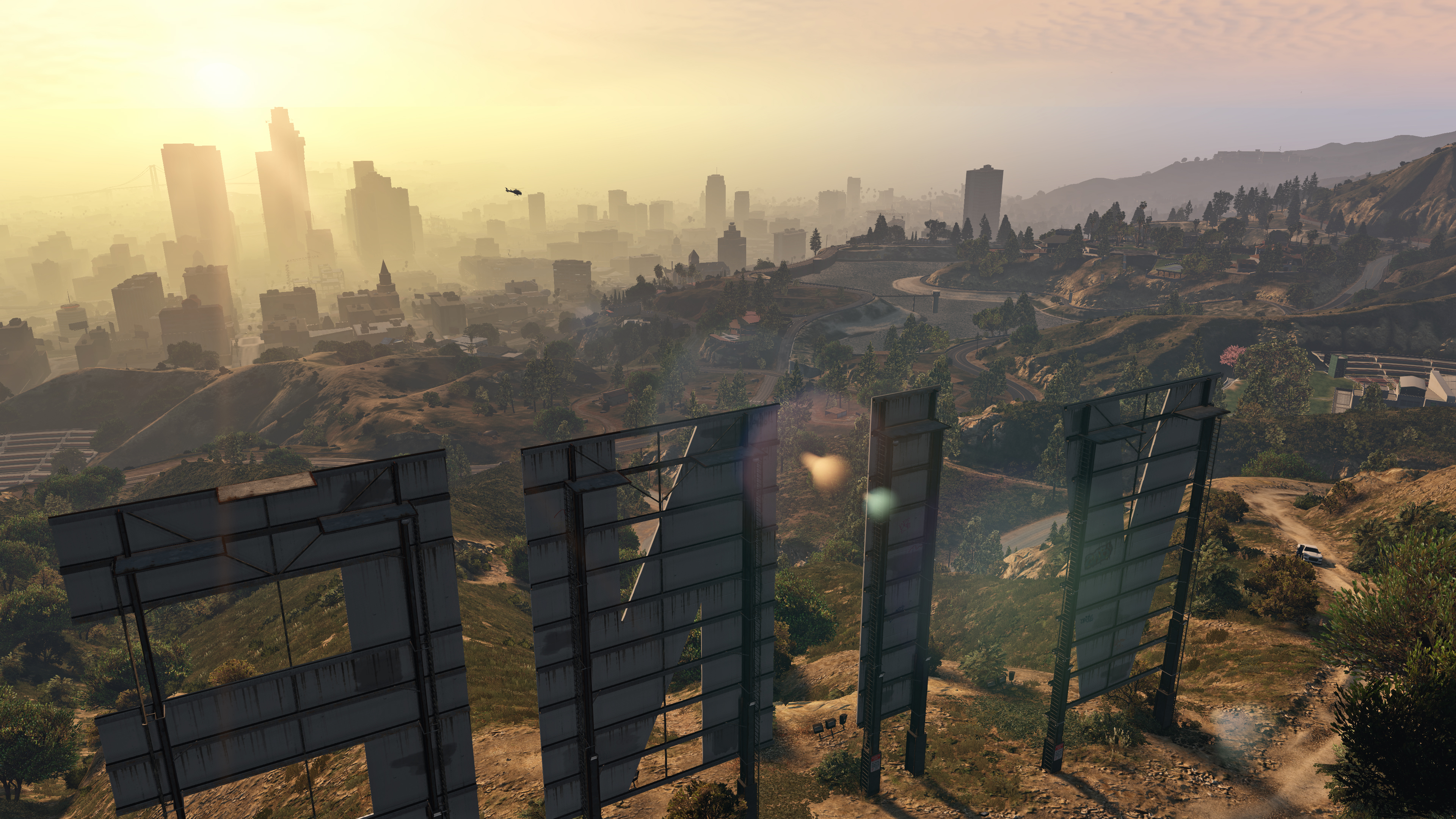
  20. MSA posted a gallery image in GTA V Galleries
  21. There is nothing to see here folks, please move along.
  22. We're always here!
  23. There is no truth to this at all. Move along.
  24. The MSA thanks you for participating in this social experiment. All hail the Supreme Almighty Master!
  25. We're always watching. Never forget that.

Account

Navigation

Search

Search

Configure browser push notifications

Chrome (Android)
  1. Tap the lock icon next to the address bar.
  2. Tap Permissions → Notifications.
  3. Adjust your preference.
Chrome (Desktop)
  1. Click the padlock icon in the address bar.
  2. Select Site settings.
  3. Find Notifications and adjust your preference.