


LCSOShakedown
Members
-
Joined
-
Last visited
Everything posted by LCSOShakedown
-
Honestly, I don't really like to compare them. They are two entirely different games to me. One is more realistic and gritty (4) while the other (SA) is more of a good-time shoot-em-up adventure. They're both good and they both have their specialties. GTASA excels in areas where GTA4 does not, and vice-versa. It's like comparing an apple to a banana.
-
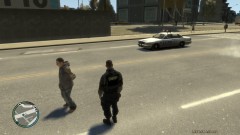
From the album: Liberty County Sheriff's Department
Suspect in custody. -
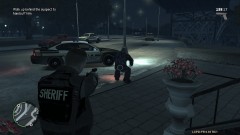
From the album: Liberty County Sheriff's Department
Some people need a little extra convincing. -
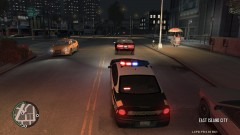
From the album: Liberty County Sheriff's Department
We got a runner. -
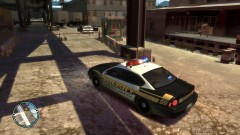
From the album: Liberty County Sheriff's Department
Arriving at a shootout. -
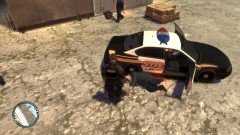
From the album: Liberty County Sheriff's Department
Aftermath of a shootout. -
Lol, first time I've ever been accused of that one.
-
Thanks. The reason I spent the time on the intro was to show people how the mod starts if they've never played it. Future videos won't have that.
-
Sometimes this happens if you don't have a model/skin installed properly when trying to select it.
-
-
911: First Responders (Emergency 4) with the LA mod is great. It's more of a Dispatch/Emergency Communications type of system as opposed to LCPDFR's boots-on-the-ground approach. I might add videos of calls to my Youtube if people are interested.
-
I just recently downloaded this mod, so I decided to upload one of my very first calls. I don't use any realistic radio chatter yet, I was looking at it from more of a "Let's see if I like this..." comedic aspect first. More will come and will gradually get better. Any suggestions, comments or "Lol you are horrible!" are welcome. https://www.youtube....h?v=1dj8jeRmkW4

