Lccop
Members
-
Joined
-
Last visited
Everything posted by Lccop
-
-
-
-
 Nice man.
 -
-
-
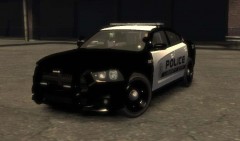
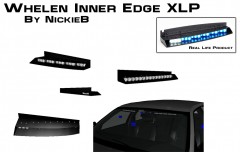
- NAME: 2010 Ford Taurus "Unmarked" - VERSION: V1.0 - LIGHT BAR: Soundoff Pinnacle SoundOff UltraLITE 8 - OTHER EQUIPMENT: N/A Credits: The model is original Ford Taurus by Driver San Francisco, modified for and converted to GTAIV and marked to Police version by F5544. Main textures are made by F5544. - Rims by Yakadafi & RGXlegends - modified by Lccop Soundoff Pinnacle - Whelen Inner Edge made by Bxbugs123, modified into a Soundoff Pinnacle by Tim98. Soundoff Ultralite8 - by Tim98, LED3's by Corleone. HG2 Emergency Lighting Products - Model created by EVI Rockwell Collins Laptop - Made & Converted by Bxbugs123 Textures By Bxbugs123 & DoTTGaMMa Setina The Bodyguard Partition - by Bxbugs123 Shotgun by Grim Unity Spotlight - Modeled & converted for GTA IV by Bxbugs123 Main textures made by Bxbugs123 Antenns - Priman
- 7 comments
- 4 reviews
-
-
-
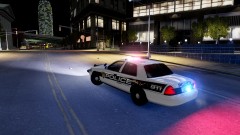 looks good
 -
-
-
-
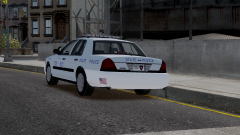
From the album: lccops
-
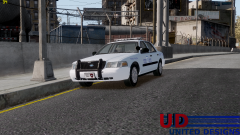
From the album: lccops
-
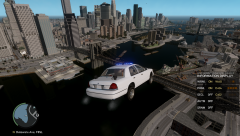 LOL
LOL -
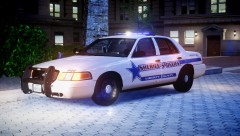 NIce
NIce -
-
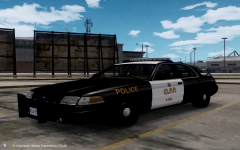 Nice work man
 -
-
-
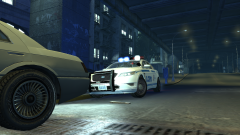
-
-
Chippy it is a 10 my bad
-
I modified the Taurus used the Grill