ErinLindsay
Members
-
Joined
-
Last visited
Everything posted by ErinLindsay
-
 Link: https://www.dropbox.com/s/ko1ni0d2qcxgjz0/Squad%2062%20FDNY.zip
 -
 Thanks, I will!
 -
I will post it in dropbox in a minute!
-
Let me find that link, its kinda rare
-
None of these are mine, haha! The ambulance and the engine are from somebody else! Do you need the engine?
-
From the album: Fire & EMS
Slip, slip, slip! -
From the album: Fire & EMS
Units on scene. -
From the album: Fire & EMS
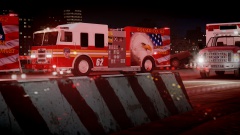
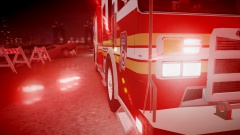
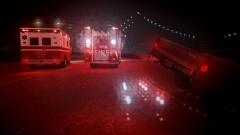
Two fire engines, one ambulance, and two squad cars responded to the toll booth to rescue a car that was minutes away from falling of a cliff in hazardous weather conditions. Should I post more of these? Let me know what you guys think? Click the GREEN ARROW IF YOU LIKED!!! -
 This one :)
 -
Sounds like a confession! You know who to contact when you get murdered!
-
-
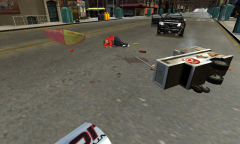
To the right, there is a fence. The police car was on the other side of the fence. The police car backed up, smashed through the fence and hit the hot dog vendor. That is why he is laying in the street. It is evident that the car has damage to its rear, proving that it caused the accident. Talk about speed enforcement...
-
Your PC will definitely run on GTA 4. Just don't go and put it on the highest setting with all those mods. http://support.rockstargames.com/hc/en-us/articles/200144866-PC-System-Requirements-for-GTA-IV
-
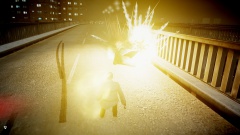
From the album: LC Patrol
A car that got too damaged, leading to an explosion! -
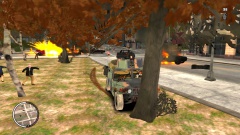 Haha yeah!
 -
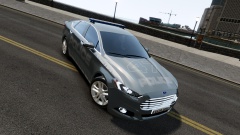 I have been waiting for one of these for a while now! Although, I wouldn't suggest a light bar, and the wheels need to be changed. But it is a WIP, so I understand. I can also help with the skin if you want! Just PM me if you need help.
 -
I am up to this! These are nice decals!
-
# Other emissive lights car.defaultlight.emissive.on 100.00 car.defaultlight.emissive.off 0.05 car.brakelight.emissive.on 12.00 car.brakelight.emissive.off 0.05 car.middlebrakelight.emissive.on 12.00 car.middlebrakelight.emissive.off 0.05 car.reversinglight.emissive.on 12.00 car.reversinglight.emissive.off 0.10 car.extralight.emissive.on 100.00 car.extralight.emissive.off 0.05
-
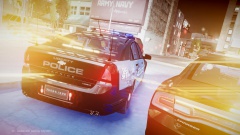 I don't have an Nvidia card, but thanks though.
 -
Thanks! Its BritishPoliceMods' Caprice http://www.gtainside.com/en/download.php?do=comments&cat=371&id=47383 Looks best with this: '?do=embed' frameborder='0' data-embedContent>>
-
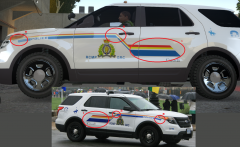 Spot on, great work!
 -
You will need a high end PC to even run this, trust me!
-
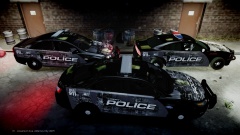 sure
sure -
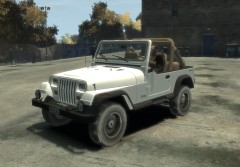 I think it should be like this: With a Whelen Edge http://img290.imageshack.us/img290/15/dscn78319qs.jpg I can make the skin for you!
 -
Name? I would really appreciate this! Thanks