


ErinLindsay
Members
-
Joined
-
Last visited
Everything posted by ErinLindsay
-
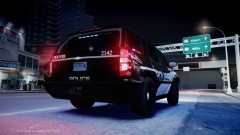 Thanks man, the truck is not mine, but the skin is, and it will be released in a pack!
 -
Yeah, he has those and is looking for something like in the pictures above. ^^^
-
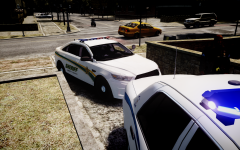 Nice skin man!
 -
Yes, I love them too! This skin is a replication:
-
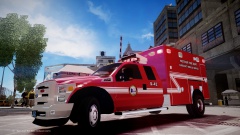 Yep, right in Birmingham, AL. Haha!!!
 -
-
From the album: Skins
First skin for gangrenn's new ambulance which can be found Let me know what you guys think! Also let me know what skin you guys would like to see!!! -
-
Thanks guys, its not my model though!
-
From the album: Skins
Skin will be released soon in a pack! Let me know what you guys think! -
I believe that the state troopers was in the right. The state trooper gave the woman multiple warnings, but yet and still she resisted and gave the officer a hard time. The woman's son had no right to step out of the vehicle and try to attack the officer. I don't see how the woman was protecting her children by running from the police, she was driving recklessly at moderately high speeds. She could have ran head on to someone and caused something that could have easily been avoided! As for the officer shooting at the vehicle, I don't think it was necessary, even though he was aiming at the tires, there were kids in the car. If the woman would have just taken the ticket, all of this could have been avoided!
-
![[WIP] 2013 Ford F450 - FDNY ambulance (lights preview)](//s3-gallery.int-cdn.lcpdfrusercontent.com/gallery/album_547/sml_gallery_2101_547_1122145.png) Your welcome! I am this model's biggest fan!!! XD
Your welcome! I am this model's biggest fan!!! XD -
-
It will be released tomorrow! :)
-
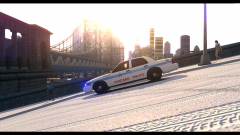 Nice shot man! Nice Chicago PD car!!!
 -
I might consider making one!!!
-
-
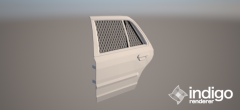 Nice man!
 -
![[WIP] 2013 Ford F450 - FDNY ambulance (lights preview)](//s3-gallery.int-cdn.lcpdfrusercontent.com/gallery/album_547/sml_gallery_2101_547_711568.png) Nice job fixing the wheels! Please let me test this!!!
Nice job fixing the wheels! Please let me test this!!! -
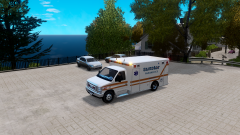 Nice one! Clean lines!!!
 -
![[WIP] 2013 Ford F450 - FDNY ambulance](//s3-gallery.int-cdn.lcpdfrusercontent.com/gallery/album_547/sml_gallery_2101_547_755054.png) I believe its the model.
I believe its the model. -
-
Hello, iCEnhancer and Vucko's ENB are two of the best ENBs out there. They also have good anti-aliasing!
-
![[WIP] 2013 Ford F450 - FDNY ambulance](//s3-gallery.int-cdn.lcpdfrusercontent.com/gallery/album_547/sml_gallery_2101_547_403956.png) Not sure!?
Not sure!? -
I gave him this link: http://sketchup.google.com/3dwarehouse/details?mid=4cb67c0b018e9935d5c69a5cc2b40723&prevstart=12

![[WIP] 2013 Ford F450 - FDNY ambulance (lights preview)](http://s3-gallery.int-cdn.lcpdfrusercontent.com/gallery/album_547/sml_gallery_2101_547_1122145.png)
![[WIP] 2013 Ford F450 - FDNY ambulance (lights preview)](http://s3-gallery.int-cdn.lcpdfrusercontent.com/gallery/album_547/sml_gallery_2101_547_711568.png)
![[WIP] 2013 Ford F450 - FDNY ambulance](http://s3-gallery.int-cdn.lcpdfrusercontent.com/gallery/album_547/sml_gallery_2101_547_755054.png)
![[WIP] 2013 Ford F450 - FDNY ambulance](http://s3-gallery.int-cdn.lcpdfrusercontent.com/gallery/album_547/sml_gallery_2101_547_403956.png)