


TGM
Members
-
Joined
-
Last visited
Everything posted by TGM
-
Polygon mode, click the object, then click quadr, then right click and drag the box on the selected area you want to delete. Then once its all red, click delete. I also suggest you isolate what you want to remove. There are some pretty good tutorials floating around as well.
-
Have a good one everyone! Greetings from Canada.
-
-
-
http://www.lcpdfr.com/page/tutorials/index.action/_/vehicle-modification-tutorial/attaching-extras-in-zmodeler-r96 That's a pretty good one. These should help, they're pretty detailed. Also, try making sure if that blue LED isn't pushed into the dashlight.
-
You would have to attach extras. Is the blue LED in the dashlight missing?
-
Extra 1 through 9 shouldn't be steadyburns. It seems like you've misspelled a lot of things. You have to make it like this. [-]extra_1 extra_1_L0 extra_1_L1 extra_1_L2 You can't rename the parent anything else or it won't work. Extra's 1-9 should be recognized by ELS. Anything above 1-9 will be a steady burn if their texture is set to emissive.
-
I'm not quite sure about that, they could have slapped them on. I haven't seen any Chevy hubcaps like that before. Yeah! I found it quite interesting that it had a different one. New Brunswick's highway patrol had nice vehicles before they disbanded.
-
This is a really good idea, I'll post some. These are some old school RCMP cars. (This picture was taken at one of the detachments near me) New Brunswick's old HP. It has since been disbanded. Dieppe's old police force slicktop Caprice (notice the beacon in the dash) Some more old blue and white RCMP cars, these are slicktops.
-
-
Thanks for the suggestions, bud. It seems to work now after a system reboot.
-
Hello everyone, I usually don't have any issues with my GTA IV, but recently I installed a car mod into my GTA IV and it won't work. I've deleting it, restoring from my back-up, trying other GTA folders I have installed, all come back with the same issue. My GTA loads for around 20 seconds then brings me back to the desktop. When I alt tab back into my game, it still doesn't work. Any suggestions would be greatly appreciated. Thanks in advanced. Edit: Also if this is of any use, this is the problem event name: AppHangB1. I've also tried deleting my savegames and different vehicles.img files. I figure it's to do with something local because EFLC doesn't work either.
-
You'd have to be good to set up all the solid features in the building, it'd take a long time. I suggest you learn how to convert/make a map mod for IV before you try and purchase this.
-
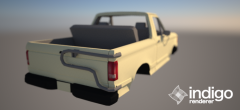 Glad to see it in motion!
 -
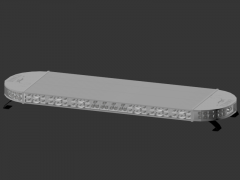 Really nice!
 -
BxBug's model is pretty good. http://gtapolicemods.com/downloads.php?do=file&id=2039
-
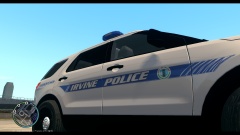 The livery looks very proper and clean, good job.
 -
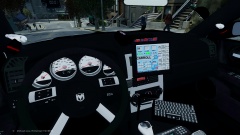 Very nice!
 -
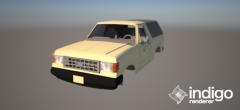 I hope you do find somebody to convert this, this would be liked in GTA.
 -
-
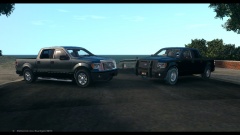 The truck on the right seems to have a red line on the side of the grille.
 -
No problem, have fun modding!
-
BxBugs made a wheel available for use as a dev part. http://gtapolicemods.com/downloads.php?do=file&id=2271
-
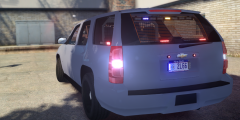 Nice work!
 -
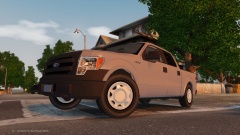 Looks very nice! I like the wheels on this one.

