




miguel456
Members
-
Joined
-
Last visited
Everything posted by miguel456
-
These are the plugins he has / Questi sono i plugin che ha @Vinnymacc223 are you loading LSPD while the game is already running? Seems like it's crashing when it loads a vehicle model, I'm not entirely sure
-
What other plugins do you have installed in LSPDFR's folder?
-
Thank You!!!! I followed all your instructions and the mod worked again!!! But I didn't put the dsound.dll back.
-
I tought that if I would delete dsound the mod would work again.
-
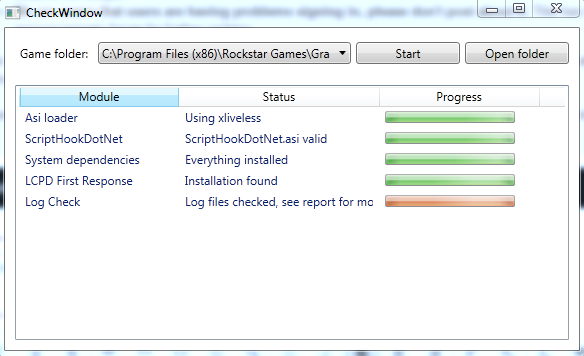
Hi there, When I opened GTA IV for the first time with LCPDFR, the game opened smoothly, as well as the mod. The next day, I opened it, and it crashed with an error related to "Access Denied". I opened the game as an administrator, the game worked; but not LCPDFR. I had two ASI loaders; I deleted "dsound.dll" and I kept Sripthook. I opened the game, it worked, but once again LCPDFR did not worked. Then, I opened the diagnostics tool. Everything was fine exept for the "Log Check". The tool itself couldn't access the file, so I copied it to the clipboard. The log that I copied to the clipboard is in the attached files. Can someone discover a solution? log.txt
-
My local law enforcement agencies are: PSP and GNR. PSP: Polícia de Segurança Publica GNR: Guarda Nacional Republicana
-
I am fan of LCPDFR! by the preview of version 1.0, it appears to be better than the last!

