
aciaca
Members
-
Joined
-
Last visited
Everything posted by aciaca
-
-
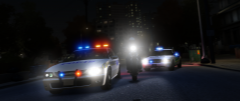
From the album: Police Chases
-
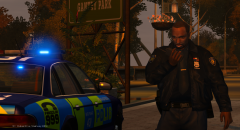
From the album: Investigation
-
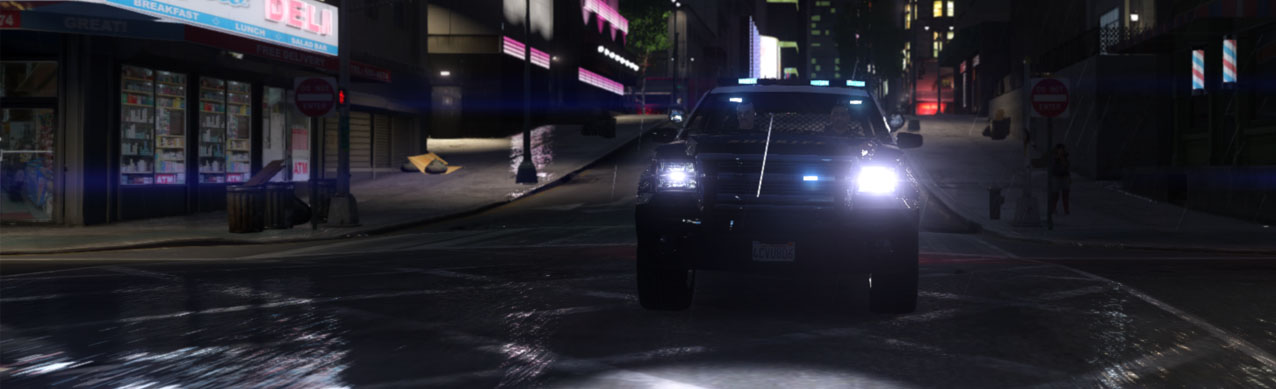
From the album: Police Chases
-
-
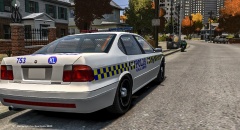 Oh! Its nice ofcourse :D I downloaded this car from a username guy called ThatOneFireFighter ;)
 -
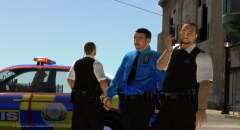
From the album: Break Time
-
Happy Birthday LCPDFR!! Best mod ever!
-
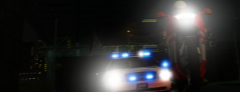
From the album: Police Chases
-
-
the thing is i dont have fb lol :D I wanna see other opinion
-
I don't know if this topic has been created before, so I start it. Someone should start an Instagram LCPDFR, we can send our picture to the insta owner account and the insta owner account will share to that account. How you guys think ? :D Cause I think is fun and cool ^^ Example: (THIS ACCOUNT DOES NOT EXIST AND IT'S PHOTOSHOPPED)
-
Pursuit !!
-
-
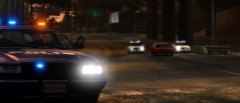
From the album: Police Chases
-
my username, aciaca is quite close to my real name so i change it, and my name like that looks quite great lol
-
-
-
Lets see thanks
-
This file msvcr100d.dll is the one making my game crashes right after I see Niko's apartment, after 1-2 seconds. I've installed my vehicles and I downloaded TrafficLoad, I did it last time that anytime. But this time i dont know why it keep crashing because of msvcr100d.dll. Well, I reinstall gtaiv and everything works perfectly fine except taxi bug, I want to remove this bug. It seems "msvcr100d.dll" is the one causing. I tried everything....
-
google it :P
-
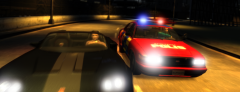
From the album: Police Chases
-
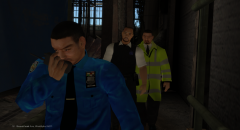
From the album: Investigation
-
Nice :D
-