


ccjohnson
Members
-
Joined
-
Last visited
Everything posted by ccjohnson
-
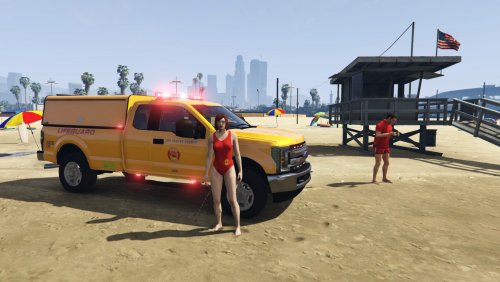 Simple, very lore friendly, EUP SR matching Lifeguard Skin for the LGUARD F350 by medic4523. Changed to all red ELS lighting. Install: Just install the F350 Pack like instructed and overwrite the lguard.ytd in OPENIV and the LGUARD.xml in the ELS folder.
 -
Thanks, Shawnyg. Just read the same here: https://www.lcpdfr.com/forums/topic/87104-reverting-the-game-with-steam-depot/ and can confirm it works. Shame it took me a week to realize that 🙂 Cheers.
-
Thank you so very much! I was one of the many that made a rookie mistake with the backup and had to do without half my mod these last days; and I can confirm that it is possible and works. And since its downloaded directly via the steam client, I also dont see any legal problems. So, here's the link to the SteamDB emtry: https://steamdb.info/app/271590/depots/ Shortcut: Open the steam console: steam://nav/console Enter that: download_depot 271590 271591 8554066082762790412 Make a backup of the current version, best with RagePlugin. Then just copy and paste everything from \Steam\SteamApps\content\app_271590\depot_271591 (app number may vary) to \Steam\SteamApps\common\Grand Theft Auto V, and you will have version .0 again. That did it for me at least. Thanks again to ShaeBakes.

