Bueno
Members
-
Joined
-
Last visited
Everything posted by Bueno
-
Fixed
-
Its on the fist page of this post
-
Your required to be on TS with us
-
We're starting another game everyone, come join if you would like. But if you have a dinosaur computer, don't join.
-
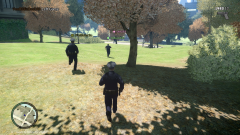 That fat cop is out running everyone!
 -
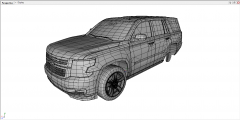 sdhjfkvhgfsdbvkj
 -
You are correct
-
As stated. You have these options to change to: RED, BLUE, EBLUE, WHITE, AMBER, GREEN, MAGENTA.
-
"Modify ; Attach" while selected mode is off
-
I would recommend downloading one of Lt.Caine or Bxbugs123's new vehicles that was just released with a rotatory lightbar and open the vehicle in sparkiv and look how they have the hierarchy set up. Edit: And yes the rotatory lightbars will only work in the spots where a rotatory was used originally.
-
-
-
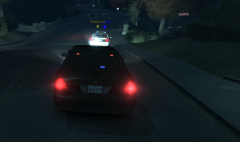
From the album: ELS 8 Official Multiplayer Testing
-
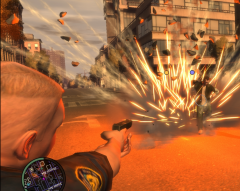
From the album: ELS 8 Official Multiplayer Testing
-
None of the "Custom" vehicles you see in that video are unlocked.
-
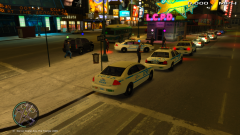 lol its pretty nice. It still needs a little work, but its still amazing.
 -
lol im not exactly sure whose it is. Either Police Wag's or Voodoo's i think.
-
From the album: ELS 8 Official Multiplayer Testing
Thanks to everyone that joined! Bxbugs123, Police Wag, Voodoo, Bosco, Raptor, Boscoreli, Carper, RipplyTiger, Caleb, Toothpick, Mag, Ringo, Jasonct203, aCoD Prodigy. (If i missed anyone let me know) -
For those of you that didn't join, your missing out!
-
We didn't get into game until about 9:30 last night.
-
-
As said above, check out the documentation that it came with and it explains it to a far more extent then i can.
-
The light positions at the bottom of the VCF have to be set to the model you are using, whatever you are using is set to a different position. (Correct me if im wrong PoliceWag)
-
Negative
-
I second cp702's post