


IronicRainbow
Members
-
Joined
-
Last visited
Everything posted by IronicRainbow
-
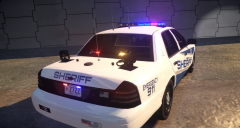 Thanks for the feedback!
 -
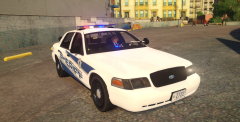 I may remove the front door moldings. I've never seen a Vic with no door moldings.
 -
From the album: IronicRainbow's Pictures
-
From the album: IronicRainbow's Pictures
-
From the album: IronicRainbow's Pictures
-
From the album: IronicRainbow's Pictures
-
![[TEASER - DAY #10] stokes basket - Firefighter mod by gangrenn [WIP]](//s3-gallery.int-cdn.lcpdfrusercontent.com/gallery/album_547/sml_gallery_2101_547_920318.png) It seems Mr. Vertex/ErinLindsay lazied out on you. Looks nice, but that dude is macho man status lifting it up like that.
It seems Mr. Vertex/ErinLindsay lazied out on you. Looks nice, but that dude is macho man status lifting it up like that. -
Why are your Soundoff Intersectors front-facing? They're meant to intersect, so they should be turned to the side. Other than that, nice. 4/5
- 10 comments
- 2 reviews
-
 The hell was that for? I was right.
 -
 Not a 2015, but still, very nice!
 -
I don't believe so.
-
Where did you put the Traffic Flow files?
-
 It's not to disrespect anyone, it's that the LCPDFR staff generally don't approve of naming other sites. I use the CZUS forums a bit, and it's not a bad website by any means.
 -
Are... Those PAR46's?
-
 Whelen edge or maybe a FS twinsonic?
 -
'?do=embed' frameborder='0' data-embedContent>>
-
No problem, that's what we're here for! Also, seeing this topic was your first post, welcome!
-
Hmm, i'm not sure. If you have a Skype, feel free to add me. My username is on my profile page on here. I can try to better help you when I get off work (in about 15 minutes).
-
You should really get a better Caprice to skin, this one is super inaccurate from the actual Caprice. Nice skin from what I can see, though.
-
Where did you put your Scripthook and Advancedhook files in your directory exactly?
-
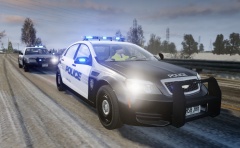 :o looks nice, and nice pic!
 -
Do you use Simple Native Trainer? If so, go to Options and look for "Enable/disable keys" and disable them.
-
![[WIP] 2001 CVPI LCPD](//s3-gallery.int-cdn.lcpdfrusercontent.com/gallery/album_722/sml_gallery_3386_722_3201.jpg) DSF :D Livery reminds me of the older Atlanta cars.
DSF :D Livery reminds me of the older Atlanta cars. -
When you press J three times (or Alt+J") in an ELS enabled car, do all the lights start flashing?
-
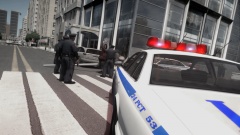 HES WORKING FROM THE INSIDE *puts on tinfoil hat*


![[TEASER - DAY #10] stokes basket - Firefighter mod by gangrenn [WIP]](http://s3-gallery.int-cdn.lcpdfrusercontent.com/gallery/album_547/sml_gallery_2101_547_920318.png)
![[WIP] 2001 CVPI LCPD](http://s3-gallery.int-cdn.lcpdfrusercontent.com/gallery/album_722/sml_gallery_3386_722_3201.jpg)
