


vynlthrash
Members
-
Joined
-
Last visited
Everything posted by vynlthrash
-
i think he was part of developing ragehook.(could be terribly wrong) but if so..he might actually have some input.
-
true that!!!!!!!!!
-
this isnt lspdfr..he author put that in the comments
-
at :28 that arrest almost looks real...im so fuggin excited...
-
so optimistic..im giving it a month...so my feels dont get hurt if its not a week or two aha
-
it was for iv..im sure for v itd be possible
-
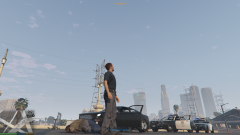 what is the model name for that ped youre using
 -
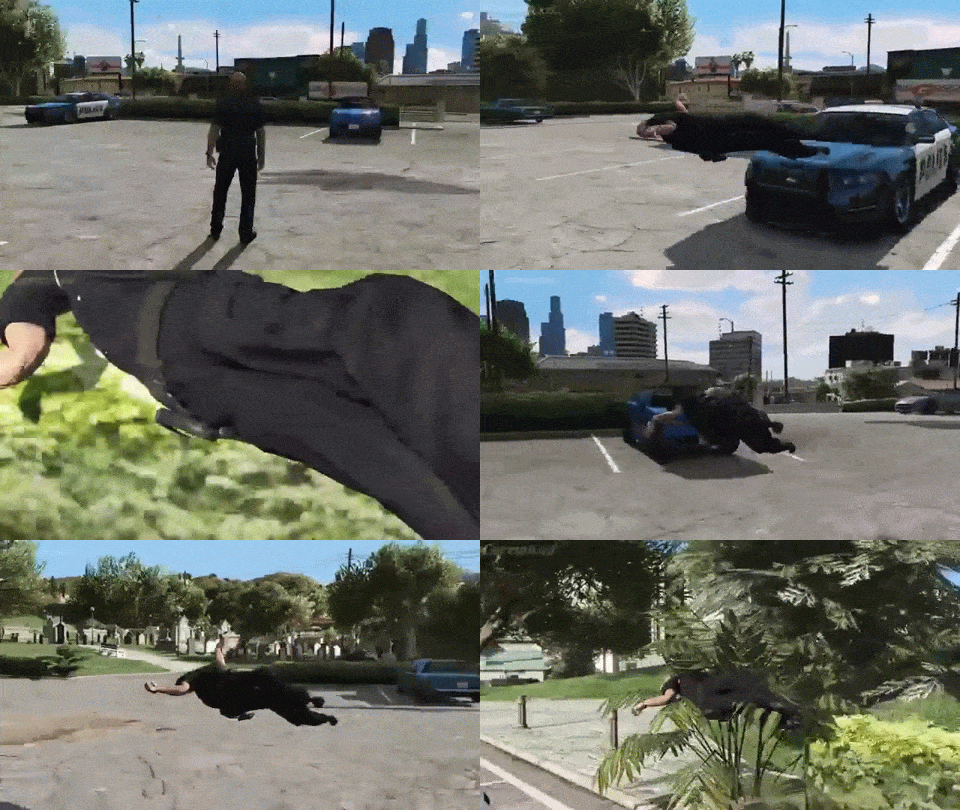 twas a terrible joke
 -
Question...can you control the spotlight?
-
heh..it defentetly makes SOMETHING harder
-
sooo.....which trainer did you guys use for this one?
-
i did too...twice...each time
-
it...my god...those arrest animations..they peds move and respond to the officer..gahhhhhhhhhhhh
-
dont you dare give me hope like that
-
i call bs..i doubt its even made on a computer...
-
 "i like your ass" "youre lying morgan!"
 -
cannot...contain..excitement
-
 99.99 1/2% sure as well
 -
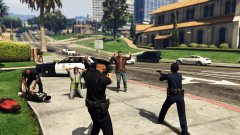 directors mode?? or???
 -
 i know who dun it
 -
oh! thank god!
-
oh cool...cross carry though..blehhh
-
is there even a drawing animation?
-
I feel like they are set already. They already have the mod announched and almost complete..all with their current staff. I wasnt thinking it'd be this close til next year..
-
 speaking of which..will we be able to set the ammount of backup units again????


