


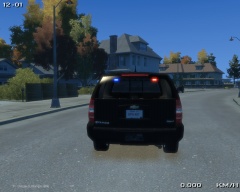
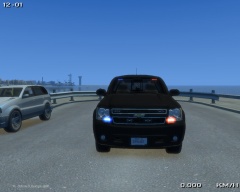
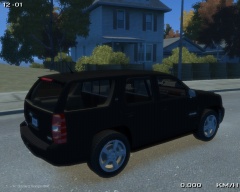
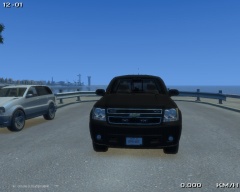
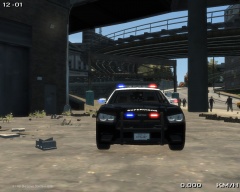
2013 Charger Pursuit with Whelen Liberty 5

By KN1IGHT
- 606 views
- View KN1IGHT's images
Just something I made today.
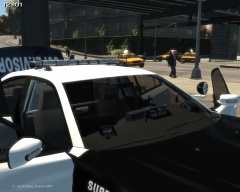
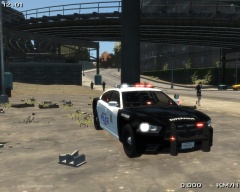
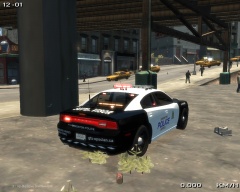
2013 Charger Pursuit (GeorgieMoon) with a Whelen Liberty.
Lighting consists of:
- Whelen Liberty
- Front & Rear Wig-Wags
- Hidden Reverse Lighting
- Code 3 XT6 Rear Side Lighting
- Code 3 XT6 Traffic Advisor
- Mini LEDs on Rambar
- Whelen ION Rambar Intersection lighting & Mirror Lighting
- Whelen Talons in front & rear
- Whelen Inner Beam front & rear lighting (never worked with it before. it turned out great!)
Parts on the Vehicle consist of:
- Setina The BodyGuard 6,7 Partition
- Setina 2012 Charger Wraparound (Wraparound removed by ymself)
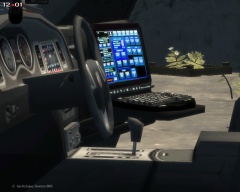
- Rockwell Collins Laptop
- WatchGuard 4RE Video Camera
- First Aid Kit in boot
- Stalker Dual Radar
- Garmin GPS Unit
- PocketJet Printer (Mounted on Partition)
- Code 3 RLS Control Box (Mounted below center console)
I think that's everything.
The texture on it is just an EPS Texture I put on for the screenshots.
This Charger is part of a small pack, which I currently haven't decided whether it will be released or not.
Please no comments about releasing. I currently haven't decided yet, and at this time, only 2 vehicles in the pack are complete. (This Charger & a CVPI which I haven't had a chance to upload screenshots of.
If released, vehicles in the pack will each have 2 versions. One version can/will utilize ELS v8 coronas for the tail lights, headlights, etc. and the other version will not.
Note: I am aware, that in this image, the Code 3 RLS Control Box, is missing textures. I noticed that when taking the screenshots. It has since been fixed.
Recommended Comments
Join the conversation
You can post now and register later. If you have an account, sign in now to post with your account.