Skip to content
View in the app

A better way to browse. Learn more.

LCPDFR.com

A full-screen app on your home screen with push notifications, badges and more.

To install this app on iOS and iPadOS
  1. Tap the Share icon in Safari
  2. Scroll the menu and tap Add to Home Screen.
  3. Tap Add in the top-right corner.
To install this app on Android
  1. Tap the 3-dot menu (⋮) in the top-right corner of the browser.
  2. Tap Add to Home screen or Install app.
  3. Confirm by tapping Install.

6-Adam Powercall for Fire Truck 1.0.0

(0 reviews)

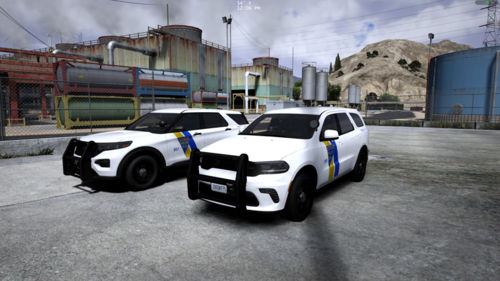
1 Screenshot

6-Adam Powercall for Fire Truck
by: DavidJD051


Hi there, me again! 

Today I have brought you the beautiful 6-Adam Powercall.

Please note that this it not the original and more common GE Powercall. This one is a bit more crisp and modern sounding. 

Install:
1. Using OpenIV, navigate to "x64 > audio > sfx > RESIDENT.rpf"

2. From the siren pack, open the "Easy Install Folder"

3. Drag and drop the "vehicles.oac" onto the
page containing all of the ".awc" files. (Make sure OpenIV is in edit mode!) 

Tones:

0x159C9182: Powercall

0X161768E7: Yelp

NOTE: This mod does not contain the unique "6Adam" tone. 


Showcase:

Sound samples sourced from the following video:


 https://youtu.be/PXGYMVItTO0


User Feedback

Recommended Comments

FCV96

Members

The more Powercall tones out there, the better!  Nice work, and it loops quite well.

officerAMR

Members

Sounds like a car alarm 

spreilly

Members

It's great, but IMO it only works IRL with a Q siren playing with it.

Murdnox

Members Author

It's great, but IMO it only works IRL with a Q siren playing with it.

Honestly, I completely agree. I tried making a Q/Powercall combination, but the file was simply too large to install while keeping a decent quality, as well as a not so repetitive tone. I'll keep trying at it though.  

Create an account or sign in to comment

Latest Mods

Account

Navigation

Search

Search

Configure browser push notifications

Chrome (Android)
  1. Tap the lock icon next to the address bar.
  2. Tap Permissions → Notifications.
  3. Adjust your preference.
Chrome (Desktop)
  1. Click the padlock icon in the address bar.
  2. Select Site settings.
  3. Find Notifications and adjust your preference.