Skip to content
View in the app

A better way to browse. Learn more.

LCPDFR.com

A full-screen app on your home screen with push notifications, badges and more.

To install this app on iOS and iPadOS
  1. Tap the Share icon in Safari
  2. Scroll the menu and tap Add to Home Screen.
  3. Tap Add in the top-right corner.
To install this app on Android
  1. Tap the 3-dot menu (⋮) in the top-right corner of the browser.
  2. Tap Add to Home screen or Install app.
  3. Confirm by tapping Install.

California Highway Patrol Texture for Hillsborough County Sheriff's Charger 1.0.0

(1 review)

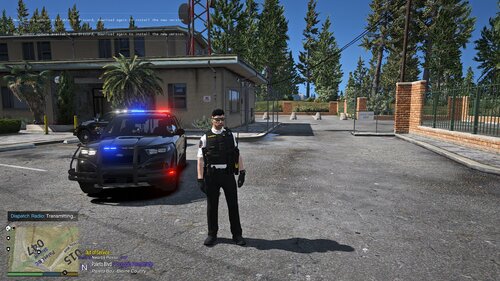
4 Screenshots

Only the texture was made by me, the Charger is made by Forza Horizon 2 and
uploaded as Hillsborough County Sheriff's Office Charger by xAzDKr!!!


to install :
1. install the charger: http://www.lcpdfr.com/files/file/8580-hillsborough-county-sheriffs-office-pack-cvpi-and-charger/
2.Run OpenIV then >mods (optional)>update>x64>dlcpacks>patchday3ng>dlc.rpf>x64>levels>gta5>vehicles.rpf>
replace the vehicle files with the provided files, the original files are to be replaced with sheriff but
you can also replace it with Police Buffalo, just rename the files to "police2" then open police2.ytd
3. click on "policenew_sign_(1) and then click on replace, so now you take my texture.

enjoy

User Feedback

Recommended Comments

PimDSLR

Members

To mutch white. Only the front doors must be white the back not.

Hystery

Members

Very nice texture, however the Charger does not need to be credited to me, it should be credited to KAMELKFB as he was the one to port the model to GTAV. I just reuploaded it with my texture for ease of use. http://www.lcpdfr.com/files/file/8466-2015-dodge-charger-rt-police/

He did the same with dbock CVPI earlier, I think he doesn't really know how to credit.

Create an account or sign in to comment

Account

Navigation

Search

Search

Configure browser push notifications

Chrome (Android)
  1. Tap the lock icon next to the address bar.
  2. Tap Permissions → Notifications.
  3. Adjust your preference.
Chrome (Desktop)
  1. Click the padlock icon in the address bar.
  2. Select Site settings.
  3. Find Notifications and adjust your preference.