


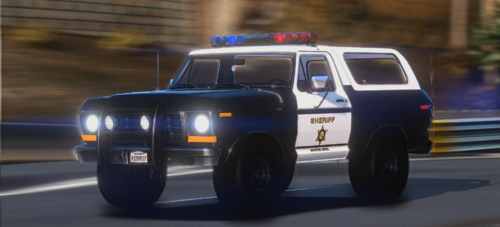
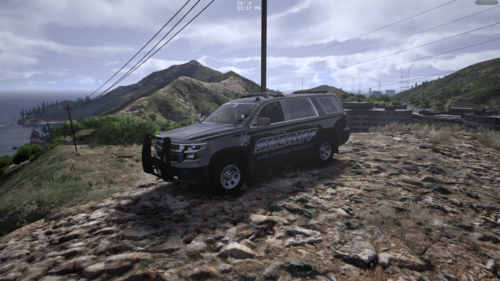
The Walking Dead Sheriff Crown Victoria (King County), based of season 1 episode 1 of the walking dead TV show.
Rick Grimes Ped: http://www.lcpdfr.com/files/file/8693-walking-dead-sheriff-rick-grimes/
My Media
CambridgeshireModder has changed names and moved to dalton9086 (please check out the new media), just to recap same person different name. New LCPDFR (http://www.lcpdfr.com/profile/50743-dalton9086/) New Youtube (https://www.youtube.com/channel/UCR9Yctbe2p9yxHmVVCd-UTA)
Installation:
IT'S VERY IMPORTANT THAT YOU FOLLOW THE INSTRUCTIONS CAREFULLY. MAKE BACKUPS!
Install with OpenIV:
C:\Program Files\Steam\SteamApps\common\Grand Theft Auto V\mods\update\x64\dlcpacks\patchday3ng\dlc.rpf\x64\levels\gta5\vehicles.rpf\
Model: Driver San Francisco/NFSMW (gamemodels.ru).
Converted to Grand Theft Auto: V by YCA-RE.
Model edits by Emergency112.
Skin by Cambridgeshire Modder
Converted to Grand Theft Auto: V by YCA-RE.
Model edits by Emergency112.
Skin by Cambridgeshire Modder

![Romanian MAN TGM 18.320 FireTruck [AT 4003]](http://s3-screenshots.int-cdn.lcpdfrusercontent.com/resize/500/-/monthly_2026_05/Grand_Theft_Auto_V_Screenshot_2026_05.09_-_13_16_22.96_optimized_4000.thumb.png.8e9b61b6b9584015346daa7228beacca.png)


Recommended Comments
Create an account or sign in to comment