Skip to content
View in the app

A better way to browse. Learn more.

LCPDFR.com

A full-screen app on your home screen with push notifications, badges and more.

To install this app on iOS and iPadOS
  1. Tap the Share icon in Safari
  2. Scroll the menu and tap Add to Home Screen.
  3. Tap Add in the top-right corner.
To install this app on Android
  1. Tap the 3-dot menu (⋮) in the top-right corner of the browser.
  2. Tap Add to Home screen or Install app.
  3. Confirm by tapping Install.

Overland Park Police Crown Victoria Skin 1.0.0

(0 reviews)

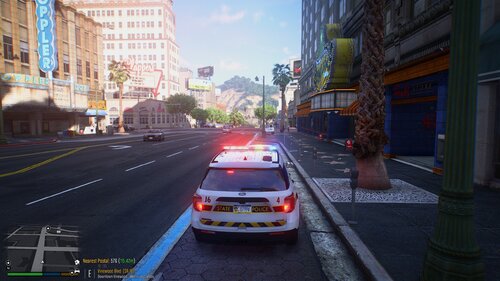
4 Screenshots

(Had to use my phone to take pictures, no programs would work that'd take screenshots. :/, I'll try my best to get one to work soon)

So this is my skin for the Overland Park Police Department, It was originally used for an Emergency 4 Modification I tried to make... So, it's not quiet the best quality.

The Crown Victoria used (The one that looks the best, and most realistic);

User Feedback

Recommended Comments

Emergency112

Members

(edited)

High quality images dude! Thats a brand new screen capture software you got there man, download link?

Edited by Emergency112

LCSO Sergeant Jester

Members Author

High quality images dude! Thats a brand new screen capture software you got there man, download link?

lol I assume, that's sarcasm? And If So, Like I said before I couldn't get anything to work on my game without crashing it, so I used my phone.

Emergency112

Members

Yeah it was, use FRAPS or whatsoever. Pretty sure it'll work. 


LCSO Sergeant Jester

Members Author

Yeah it was, use FRAPS or whatsoever. Pretty sure it'll work. 


Tried... Whenever It's opened, It'll crash my game, but as soon as I close it. My game starts working again. :P

RyWilson

Members

dam i thought that was goin to be brown from the pics :P either way its better than white. thanks for the skin :D

Create an account or sign in to comment

Account

Navigation

Search

Search

Configure browser push notifications

Chrome (Android)
  1. Tap the lock icon next to the address bar.
  2. Tap Permissions → Notifications.
  3. Adjust your preference.
Chrome (Desktop)
  1. Click the padlock icon in the address bar.
  2. Select Site settings.
  3. Find Notifications and adjust your preference.