





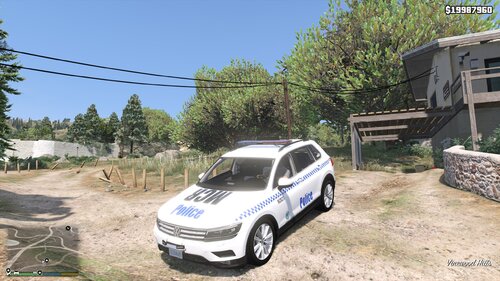
This file includes a texture for the Police Interceptor by Lt.Caine. The texture is based off Surrey Police vehicles, here in the UK.
It's the first texture I have made for GTAV and the first I've uploaded here for a very long time. Let me know what you think about it, there is always room for improvement/more!
I've done a lot of thinking for this one, which has resulted in a lot of head hurting. Hopefully it's paid off.
How to install:
Firstly download and install Lt.Caine's Interceptor (http://www.lcpdfr.com/files/file/8329-v-interceptor-default-type/), follow his instructions, then:
1) Open OpenIV.
2) Go to "update/x64/dlcpacks/patchday4ng/dlc.rpf/x64/levels/gta5/vehicles.rpf”.
3) Activate 'Edit Mode' and open up "police3.ytd" and replace "pol3_sign_1" with my texture "POLICE3_Surrey_Police_Texture.png". (NOTE: Replace 'pol3_sign' 2, 3 and 4 if you want every car to spawn with the British Police Texture.) Save and exit the texture viewer.
4) Exit OpenIV.
5) Play GTA5, lots.
Enjoy the battenburg markings. Unfortunately, its not edible.
Genze - Surrey Police Skin







![Grapeseed Police Department EUP [Replace]](http://s3-screenshots.int-cdn.lcpdfrusercontent.com/resize/500/-/monthly_2026_04/mainthumbnail.thumb.png.70cc09e736714cc9fbd2cbea7f4fd4f4.png)


Recommended Comments
Create an account or sign in to comment