





A police version of the massacro.
Features:
Fully UV Mapped skin
Includes template
Custom light textures
Known issues:
Dials in first person dont work, working on a fix
Windows dont break
-- All should be fixed in next update (couple of days)
BlueOrange - Model edits, turning into police, reskin, UVMapping and template

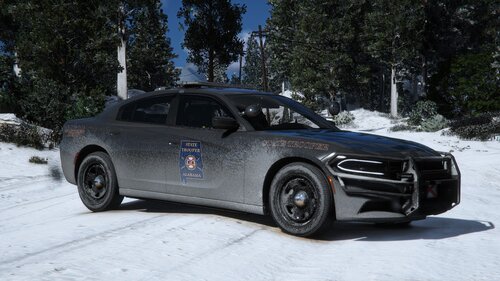
![[Non-ELS/DLSv2] CHP BMW R1200RT-P [Addon/FiveM]](http://s3-screenshots.int-cdn.lcpdfrusercontent.com/resize/500/-/monthly_2026_04/1.Thumbnail.thumb.png.27cfb560319fde49d84f8b97a7587c1d.png)

![Ambulance Protection Civile Algérienne [ELS]](http://s3-screenshots.int-cdn.lcpdfrusercontent.com/resize/500/-/monthly_2026_04/Screenshot(150).thumb.png.8aceb0d0a35ebc9abb6c32ce785a5e27.png)
![Camion de la Protection Civile Algérienne [ELS]](http://s3-screenshots.int-cdn.lcpdfrusercontent.com/resize/500/-/monthly_2026_04/Screenshot(157).thumb.png.472fd871730c95e9b4cfbb9e927b26e5.png)
![FHP Style Belts [FIVEM Ready]](http://s3-screenshots.int-cdn.lcpdfrusercontent.com/resize/500/-/monthly_2026_04/Screenshot2026-04-24114558.thumb.png.0e174437327be7c07aba2e9e0676a6aa.png)
![Los Santos Police Department Package [EUP][FiveM Ready][Addon]](http://s3-screenshots.int-cdn.lcpdfrusercontent.com/resize/500/-/monthly_2026_04/Screenshot(335).thumb.png.5a33d323a9f17c6db2e357f4eaa74482.png)
![[Non-ELS] [DLS] Pomona Police Dept. Pack](http://s3-screenshots.int-cdn.lcpdfrusercontent.com/resize/500/-/monthly_2026_04/GrandTheftAutoV4_1_20268_56_27PM.thumb.png.6d5aa40219aa8dbd1bab207d7af3260f.png)


![[DLS/Add-on] 2018 Dodge Charger PPV - Chumash Police Dept.](http://s3-screenshots.int-cdn.lcpdfrusercontent.com/resize/500/-/monthly_2026_04/1.thumb.png.63c922010e6594423917655ad39d5cd5.png)

Recommended Comments
Create an account or sign in to comment