




Just a simple .ini change here and there, nothing to crazy.
Make backups first, drop this in, try it out. Don't like it? Try it again.
For real don't like it? Drop your backups back in. Like it? Sweet, keep it.
Enjoy!
What's New in Version 1.0.1
Released
Left STPMenu X+DPadLeft by mistake and that was an older version. Fixed to A+DPadLeft
Short Description
Simple .ini Changes. This setup puts LSPDFR Base Controls, STP, UB, NPCI, EUP, ELS, CompuLite. Smooth with no menu overlaps.
AI disclosure
The author has disclosed that AI tools were used in creating the following aspects of this file:
- Images
Michael Roman

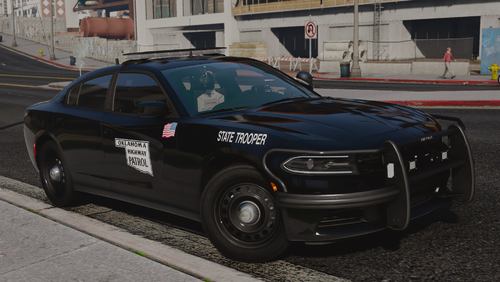
.thumb.png.aba303ef3347895c10dd77447e0939d1.png)
.thumb.png.48f7634114fcf3c9dcd9640b767efa15.png)
.thumb.png.36a20ba37d2f72ab290a620325b92fcf.png)
.thumb.png.5919dc9dd354252d0c596d9817ce3469.png)






Recommended Comments
Create an account or sign in to comment