Skip to content
View in the app

A better way to browse. Learn more.

LCPDFR.com

A full-screen app on your home screen with push notifications, badges and more.

To install this app on iOS and iPadOS
  1. Tap the Share icon in Safari
  2. Scroll the menu and tap Add to Home Screen.
  3. Tap Add in the top-right corner.
To install this app on Android
  1. Tap the 3-dot menu (⋮) in the top-right corner of the browser.
  2. Tap Add to Home screen or Install app.
  3. Confirm by tapping Install.

1803's Speed Limit HUD: Show Speed Limits With JSON Config File 1.0.0

(1 review)

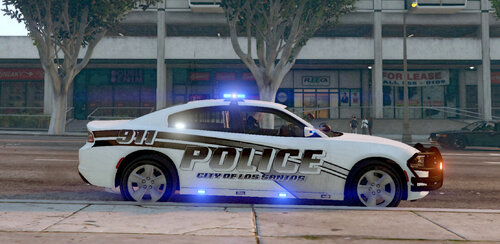
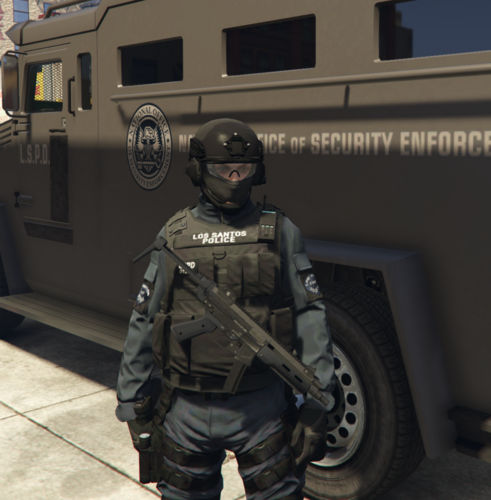
2 Screenshots

Files go into GTAV\scripts folder.

Showcase:

This script will display the speed limit for the road currently on as defined in the json file.

This has no actual influence on AI Driving, it is just used to show speed limits.

Press F10 in game to turn on/off. Default is turned on when script is loaded.

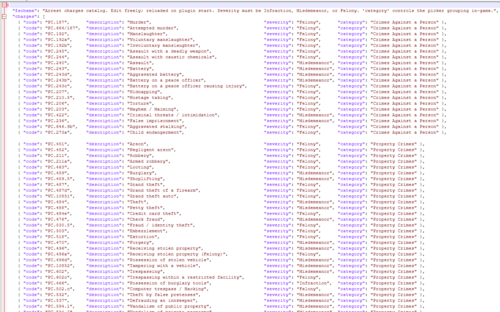
The JSON file is used to configure speed limits . If a road is missing, you can add it, I added East Joshua Road to the Json file and after reloading scripts in-game, it did work. (There is a default for roads not defined in the JSON file too).


Edited by 1803 Creations


Short Description

A script that shows a display of a speed limit sign with the speed limit. Speed limits are defined in the JSON file.

AI disclosure

The author has disclosed that AI tools were used in creating the following aspects of this file:

  • Mod and Mod Content (Substantial)

AI helps bring another idea to life. Enjoy!

User Feedback

Recommended Comments

1803 Creations

Members Author

2 hours ago, EinsteiniSLAND said:

First one to try this. Hope it works as i expect.

Let me know what you think!

nova2727

Members

Very nice mod. I’ve just tried it in my liberty city map and it works on that map also. Cool mod

M.Williams

Members

for whatever reason, I am getting a Json file error. I wanted to show you the message, but i cannot upload on here.

1803 Creations

Members Author

5 hours ago, M.Williams said:

for whatever reason, I am getting a Json file error. I wanted to show you the message, but i cannot upload on here.

Did you change something in the file? If you changed the file, just replace it from the download or scan it to AI, AI will fix it for you.

M.Williams

Members

4 hours ago, 1803 Creations said:

Did you change something in the file? If you changed the file, just replace it from the download or scan it to AI, AI will fix it for you.

I changed the default speed limit to 60. for whatever reason, it is stuck on 35. I have no idea what AI you are talking about.

4 hours ago, 1803 Creations said:

Did you change something in the file? If you changed the file, just replace it from the download or scan it to AI, AI will fix it for you.

I sent you a DM of the error

Can we position it above the mini map instead of the top right of the screen or is it not a thing at the moment?

1803 Creations

Members Author

On 4/14/2026 at 8:32 PM, JM Modifications said:

Can we position it above the mini map instead of the top right of the screen or is it not a thing at the moment?

Yes, you can change the sign position in the json config file.

ObscureBij

Members

I click F10 in-game and nothing happens, the speed limit doesn't appear on screen. Can someone help?

1803 Creations

Members Author

(edited)

1 hour ago, ObscureBij said:

I click F10 in-game and nothing happens, the speed limit doesn't appear on screen. Can someone help?

My guess is you don't have the newtsonsoft dll file which is used to read/use JSON files. I will include it in the next update, you can find it here: https://www.nuget.org/packages/Newtonsoft.Json/

Edited by 1803 Creations

OfficerHawkYT

Members

Can you edit the key from F10

1803 Creations

Members Author

11 hours ago, OfficerHawkYT said:

Can you edit the key from F10

Yes, you can change the key in the json config file.

ObscureBij

Members

(edited)

On 4/18/2026 at 6:55 PM, 1803 Creations said:

My guess is you don't have the newtsonsoft dll file which is used to read/use JSON files. I will include it in the next update, you can find it here: https://www.nuget.org/packages/Newtonsoft.Json/

Forgot to answer you but it stil did not work. I already downloaded that before using the mod but installed again just to make sure, nothing changes.
Edit: I think I needed to put the dll inside scripts folder? I have others of this installed in my main folder so I thought that was enough. Will be testing it and see if now the script works.

Edited by ObscureBij

1803 Creations

Members Author

9 hours ago, ObscureBij said:

Forgot to answer you but it stil did not work. I already downloaded that before using the mod but installed again just to make sure, nothing changes.
Edit: I think I needed to put the dll inside scripts folder? I have others of this installed in my main folder so I thought that was enough. Will be testing it and see if now the script works.

Technically yes, the dll files for the speed limit shower can go in the root of GTAV but it makes more sense to put them in the scripts folder for organization.

If it is still not working, take a look at the ragepluginhook.log and it should at least tell you it loaded/failed to load and why.

ObscureBij

Members

(edited)

On 4/22/2026 at 10:35 AM, 1803 Creations said:

Technically yes, the dll files for the speed limit shower can go in the root of GTAV but it makes more sense to put them in the scripts folder for organization.

If it is still not working, take a look at the ragepluginhook.log and it should at least tell you it loaded/failed to load and why.

My log says nothing about it, so it didn't actually load. Not sure why. All my other scripts load correctly tho.
Edit: found the problem. My pc was blocking it from working as it came from another computer, so I unblocked it, now I think it works.

Edited by ObscureBij

Create an account or sign in to comment

Latest Mods

Account

Navigation

Search

Search

Configure browser push notifications

Chrome (Android)
  1. Tap the lock icon next to the address bar.
  2. Tap Permissions → Notifications.
  3. Adjust your preference.
Chrome (Desktop)
  1. Click the padlock icon in the address bar.
  2. Select Site settings.
  3. Find Notifications and adjust your preference.