Skip to content
View in the app

A better way to browse. Learn more.

LCPDFR.com

A full-screen app on your home screen with push notifications, badges and more.

To install this app on iOS and iPadOS
  1. Tap the Share icon in Safari
  2. Scroll the menu and tap Add to Home Screen.
  3. Tap Add in the top-right corner.
To install this app on Android
  1. Tap the 3-dot menu (⋮) in the top-right corner of the browser.
  2. Tap Add to Home screen or Install app.
  3. Confirm by tapping Install.

Reii's Quantv Reshade Config 1.0.0

(0 reviews)

3 Screenshots

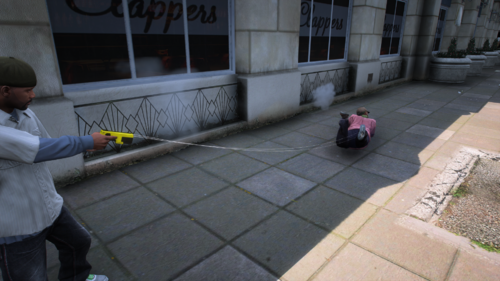
This is My Config I made I think its very good May Not be for some people but I did my best I will update it more Later on.


Short Description

Quantv Reshade Config

User Feedback

Recommended Comments

reii

Members Author

ill make more different kind of presets later

mrbailey15

Members

What visualsettings do you use with this preset I like the preset a lot but my els lights are just way to bright for the lowest setting of brighter lights

reii

Members Author

On 3/11/2026 at 12:48 AM, mrbailey15 said:

What visualsettings do you use with this preset I like the preset a lot but my els lights are just way to bright for the lowest setting of brighter lights

Hi sorry For the late response I use regular quantv visualsettings

Create an account or sign in to comment

Latest Mods

Account

Navigation

Search

Search

Configure browser push notifications

Chrome (Android)
  1. Tap the lock icon next to the address bar.
  2. Tap Permissions → Notifications.
  3. Adjust your preference.
Chrome (Desktop)
  1. Click the padlock icon in the address bar.
  2. Select Site settings.
  3. Find Notifications and adjust your preference.