Skip to content
View in the app

A better way to browse. Learn more.

LCPDFR.com

A full-screen app on your home screen with push notifications, badges and more.

To install this app on iOS and iPadOS
  1. Tap the Share icon in Safari
  2. Scroll the menu and tap Add to Home Screen.
  3. Tap Add in the top-right corner.
To install this app on Android
  1. Tap the 3-dot menu (⋮) in the top-right corner of the browser.
  2. Tap Add to Home screen or Install app.
  3. Confirm by tapping Install.

Newton's March ReShade Preset 1.0.0

(0 reviews)

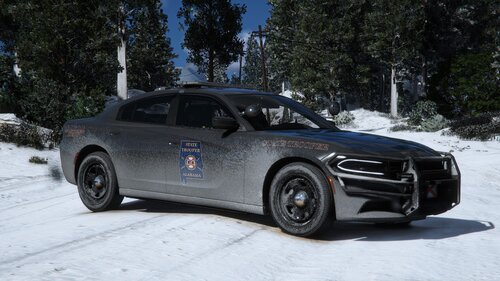
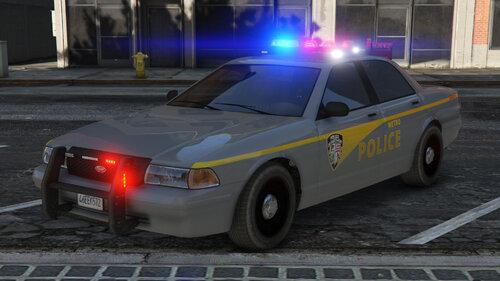
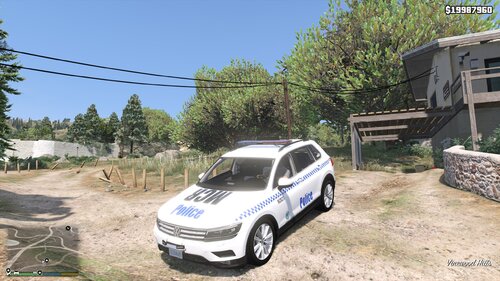
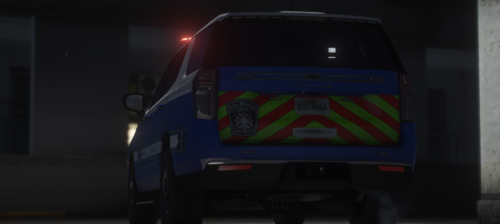
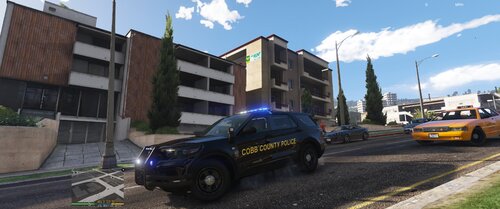
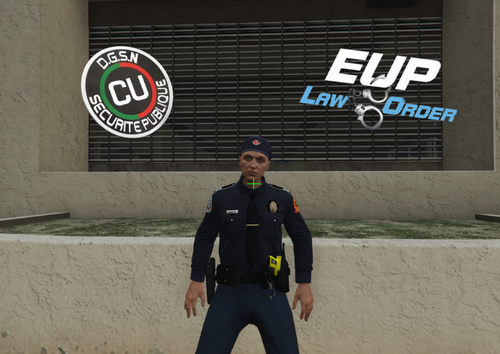
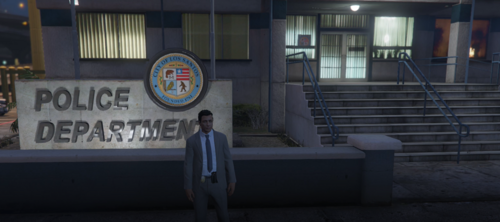
6 Screenshots

There have been a laundry list of improvements compared to the February Preset.

This relies solely on VisualV and ReShade. No other graphics mods or ENB are needed.

Please keep in mind your game may not look exactly like mine due to different graphics settings. All pictures were taken with in-game brightness to the max. I will attempt to make more reshade presets monthly.

VisualV: https://www.gta5-mods.com/misc/visualv


Short Description

Includes: ReShade .ini File, Game Screenshots, and In-Game Settings

User Feedback

Recommended Comments

Powletsky

Members Author

Another picture

Could contain: text, land vehicle, vehicle, outdoor, sky, vehicle registration plate, wheel, tire, car, automotive tail & brake light, auto part, mid-size car, transport, automotive lighting, automotive exterior, bumper, family car, snow, street, ground

Can i use this in QauntV have you ever thought about making qauntv graphics too? without ENB?

Powletsky

Members Author

On 3/1/2026 at 11:28 AM, CrownVicLover2000 said:

Can i use this in QauntV have you ever thought about making qauntv graphics too? without ENB?

I’m sure it will work with QuantV as long as you have reshade although I’m not sure how it will look. I use only ReShade and VisualV. I have no plans to make anything strictly compatible with QuantV since I do not already use it and I will not do anything ENB related.

Create an account or sign in to comment

Account

Navigation

Search

Search

Configure browser push notifications

Chrome (Android)
  1. Tap the lock icon next to the address bar.
  2. Tap Permissions → Notifications.
  3. Adjust your preference.
Chrome (Desktop)
  1. Click the padlock icon in the address bar.
  2. Select Site settings.
  3. Find Notifications and adjust your preference.