Skip to content
View in the app

A better way to browse. Learn more.

LCPDFR.com

A full-screen app on your home screen with push notifications, badges and more.

To install this app on iOS and iPadOS
  1. Tap the Share icon in Safari
  2. Scroll the menu and tap Add to Home Screen.
  3. Tap Add in the top-right corner.
To install this app on Android
  1. Tap the 3-dot menu (⋮) in the top-right corner of the browser.
  2. Tap Add to Home screen or Install app.
  3. Confirm by tapping Install.

[Fivem/SP] Radio+Pistol Emote 1.0.1

(0 reviews)

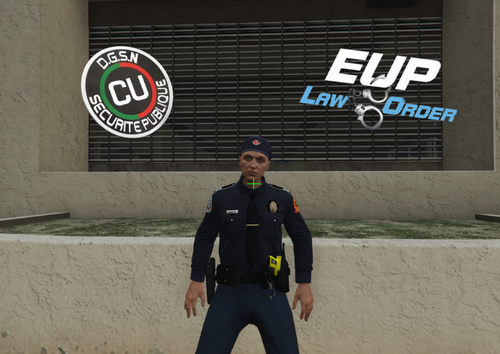
1 Screenshot

To have a pistol, you just need to take it from the list of weapons.

What's New in Version 1.0.1

Released

Fixed animlist


Short Description

Radio and pistol emote

User Feedback

Recommended Comments

marwaan

Members

Can I aim& shoot while holding the radio?

Svarteex

Members Author

23 minutes ago, marwaan said:

Can I aim& shoot while holding the radio?

Unfortunately, it doesn't allow you to do that.

jonathanx

Members

Where do I put this animation?

haccy

Members

Very cool Emote! Keep going with your work!

NeonBlue536

Members

To use this emote you will need to download menyoo:

GTA5-Mods.com
No image preview

Menyoo 2.0 (Enhanced & Legacy)

Requirements Latest Version of Scripthook ASI Loader built into OpenIV (Legacy) ASI Loader from OpenRPF (Enhanced) Alloc8ors Directstorage fix (Enhanced on Windows 11) Battleye Disabled in the Ro

Watch this video to help you install the animation:

jonathanx

Members

23 hours ago, NeonBlue536 said:

To use this emote you will need to download menyoo:

GTA5-Mods.com
No image preview

Menyoo 2.0 (Enhanced & Legacy)

Requirements Latest Version of Scripthook ASI Loader built into OpenIV (Legacy) ASI Loader from OpenRPF (Enhanced) Alloc8ors Directstorage fix (Enhanced on Windows 11) Battleye Disabled in the Ro

Watch this video to help you install the animation:

Alright thank you

Create an account or sign in to comment

Account

Navigation

Search

Search

Configure browser push notifications

Chrome (Android)
  1. Tap the lock icon next to the address bar.
  2. Tap Permissions → Notifications.
  3. Adjust your preference.
Chrome (Desktop)
  1. Click the padlock icon in the address bar.
  2. Select Site settings.
  3. Find Notifications and adjust your preference.