





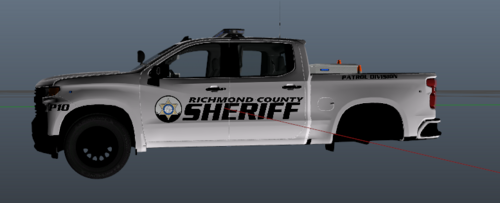
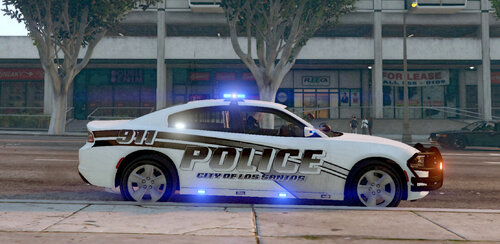
YOO TIME FOR THE RED TO GO BLUE Some Of You Requested If I Could Convert My Red BCSO Pack From Red To Blue Style SO I DID ! And I Added Extra Skins For The Pack Some Of You Want The Tops To Not Be Colored So That Option Has Been Added!
For The Charger I Added A Suprise 3 Transparent Skins So You May Choose Different Skin Colors Their Will Be A White, Black and Blue Font Transparent Skins!
Also As Added Long Awaited Bonus 3 Camo Skins For The Charger Have Been Added The Camo Skins Are A Blue Hue Skin :) Enjoy!!
Skins In Pack:
2018 Dodge Charger PPV Skins: 4 Colored Top Skins, 4 Non Colored Top Skins, 2 Unmarked Skins, 3 Blue Camo Skins,3 Transparent Skins.
2020-2021 Ford Explorer Skins: 4 Colored Top Skins, 4 Non Colored Top Skins.
2021-2022 Chevy Tahoe Skins: 4 Colored Top Skins, 4 Non Colored Top Skins.
For A Grand Total Of 32 Skins In This PACK ENJOY !
Cars/Packs I Used:
Car (Made By:Delgad114)
(For This I MADE The Lights From R/B To B/B)
Pack I Used 1 (Pack Made By: Scorpionfam)
Pack I Used 2 (Made By: OfficerArk)
I used this packs as these skins fit these models BUT BE AWARE THEY MAY NOT FIT ALL MODELS OR WORK WITH THEM I RAN INTO THIS AS WELL
Short Description
Pack 1 (Pack Made By: Scorpionfam)
Pack 2 (Made By: OfficerArk)


![[ELS-Hybrid | DLC/Addon ] Low-Profile z71 Tahoes](http://s3-screenshots.int-cdn.lcpdfrusercontent.com/monthly_2026_05/25_1(1).thumb.png.7bdf0066d86afe565fac5e2684baa3e8.png)




![[ELS][REPLACE] 2020 Skoda Octavia Městská policie Praha (New design)](http://s3-screenshots.int-cdn.lcpdfrusercontent.com/resize/500/-/monthly_2026_05/20260514222354_1.thumb.jpg.dedd1cd5cdf14716666af6abfa71508d.jpg)


.thumb.png.a0f80464539c2dd42ee2519c1bda91f2.png)

![Generic Whelen 2023 F150 B/B [FiveM & Single Player]](http://s3-screenshots.int-cdn.lcpdfrusercontent.com/monthly_2026_05/enb2026_5_13_15_23_48_06.thumb.png.ecbdfb941234f496e3fd959033f602d4.png)

Recommended Comments
Create an account or sign in to comment