



These Ultimate Backup config files will allow you to utilize multiple packs by the authors Scorpionfam and Preston to their fullest potential by allowing backup AI to respond driving them, and with proper uniforms.
Credit to AstroTriesModding for his EUP conversion tools which makes making these configs a breeze.
Notable features in these configs:
- Local and SAHP supervisor units can be called whenever a Karen demands it.
- HEAT units to keep up with faster vehicles in pursuits.
- SAHP CVE can be called to assist with large commercial vehicles
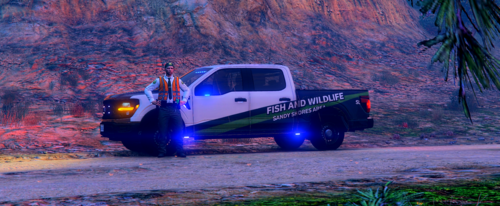
- San Andreas Park Rangers can be called to deal with wildlife-related issues
- Call a SAHP Motor Unit to keep up with suspects on motorbikes
- A massively overhauled EMS system featuring a large handful of vehicles collected from around 5-mods. Requirements linked below.
- Dynamic patrol zones via customregions.xml allowing different patrol vehicles to respond in that specific region, sometimes alongside another department.
Configs Install:
BACK UP ORIGINAL FILES!
I am not responsible if you did not back up your original files before installing.
- BACK UP ORIGINAL FILES!
I am not responsible if you did not back up your original files before installing.
- Ultimate Backup:
- Drag n drop the three Ultimate Backup .xml files into
GTA V Directory -> Plugins -> LSPDFR -> Ultimate Backup
- Policing Redefined:
- Drag n drop the three Policing Redefined .xml files into
GTA V Directory -> Plugins -> LSPDFR -> PolicingRedefined -> Backup
- Replace when asked.
Wardrobe.ini instructions:
-
Merge method: Recommended to not erase your custom outfits
- Open my wardrobe.ini file, right click, select all, copy
- Open your wardrobe.ini, scroll to bottom, hit Enter twice if needed,
- right click, paste
- Make sure all the outfit entries are evenly spaced when pasting!
-
Replace method: Clean wardrobe.ini install, will erase custom outfits
-
Back up your original wardrobe.ini!
- I am not responsible if you did not back up your files.
- Copy my wardrobe.ini to GTA Directory -> Plugins -> EUP
- Replace when asked.
-
Back up your original wardrobe.ini!
Requirements:
*Install ALL of these, or the configs will fail to work as intended!
- EUP 9.7 or newer, from the EUP Patreon.
The following packs by Scorpionfam
- Either light color option should behave the same
- Either light color option should work as long as it is the ADDON VERSION
The following packs by Preston
The following vehicle by Allen Development
EMS addons
*Take your time downloading these! 5-mods will rate limit you!
Medical Response San Andreas EMS Pack
DO NOT install the replace version!! Install the AMBUIMP ADDON version!
Vapid Sandstorm D205 Ambulance
Fire addons
Tow truck addons
Animal Control
- Vapid Kennel Animal Control
Optional:
Install unmarked vanilla replace vehicles, as none of the vehicles in the packs listed above replace vanilla police vehicles. Otherwise, you will see either vanilla models or the models you last installed spawning ambiently via LSPDFR or callouts.
If this happens and it bothers you, I suggest finding and using unmarked vehicles of your choice as replacers for vanilla vehicles. @Steve6645's unmarked vehicles are a very good option as he has enough to cover every vanilla vehicle slot and then some, and not all of them are natively addon.
Final Notes and Known issues:
- These configs were intended for use with EUP versions 9.7 or newer.
Older versions of EUP (9.6, 9.3, 8.3, 7.2, etc.) will NOT work.
If there are any issues, bugs, glitches, suggestions, questions, comments, concerns, etc. about these UB configs, please join my Discord server. Report all issues to the #game-support channel.
Edited by K7BSamuel
New file version coming
What's New in Version 2.0.0
Released
Oh boy.... a LOT!
- New uniforms for Paleto and Vespucci PDs.
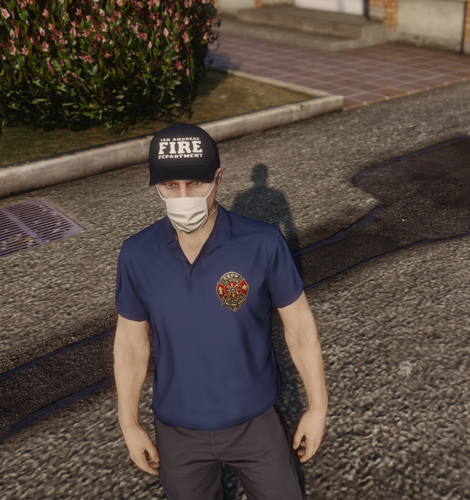
- Major EMS and Fire Overhaul
- Spawn Distances added
- All uniforms updated to new standard
- New uniforms for SAHP, based on Nevada Highway Patrol
- New uniforms for LSSD, based on Broward County Sheriff
- New special unit type: SAHP Motor Units
- New special unit type: SA State Park Rangers
- New department: South Fulton Police Department, which patrols the majority of southeast LS, from Mirror Park to Cypress Flats.
- New department: Senora Police Department, which patrols all of the Senora Valley, from Harmony to Grapeseed and everywhere in between.
- SAHP now has their own K9 vehicle, relying on Allen Development's 2020 K9 FPIU.
-
A large majority of vehicles were reorganized, particularly among LSSD.
- LSSD now has properly marked Sergeant vehicles. The vehicles that were serving Supervisors previously have been redistributed.
- BCSO now has a greater pool of vehicles for general patrol, and shrank vehicle pools for specific jurisdictions.
- Added Senora PD to Local HEAT, one single 2010 Charger Traffic livery.
Short Description
Allen and others for their vehicles
Astro for his EUP to UB Converter
Bejoijo for Ultimate Backup

.thumb.jpg.53b34831893b714bdea2520e5d0a8595.jpg)




![[ELS-Hybrid | DLC/Addon ] Low-Profile z71 Tahoes](http://s3-screenshots.int-cdn.lcpdfrusercontent.com/monthly_2026_05/25_1(1).thumb.png.7bdf0066d86afe565fac5e2684baa3e8.png)
![Blaine County Sheriff's Office Package [Replace/Addon]](http://s3-screenshots.int-cdn.lcpdfrusercontent.com/resize/500/-/monthly_2026_05/Screenshot2026-05-02002834.thumb.png.c4675a1f9cbe0dc058244f158c7ee8a1.png)
Recommended Comments
Create an account or sign in to comment