


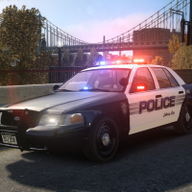


MODEL OVERVIEW
=================================
- NAME: 1998 Ford Crown Victoria - Unmarked
- VERSION: V2.2N
- EXTRA PARTS: Multiple Liveries
- OPTIMIZED FOR: FIB Buffalo
INSTALLATION
Use SparkIV or OpenIV to import the police2.wft and the police2.wtd into GTAIVpcmodelscdimagesvehicles.img.
CREDITS
- Model is Ford Crown Victoria from Driver SF, converted to GTA IV by F5544, modified by KevinDV and Cj24.
- Wheels by Schaefft, converted by Teddy.
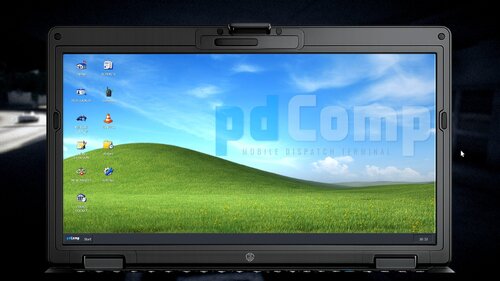
- Partition and Laptop by Lt.Caine.
- Emergency lights made by Cj24.
- Liveries made by Cj24.
FILES INCLUDED
- fbi.wft
- fbi.wtd
- Readme
- Template
- Pictures
When editing or distributing any contents of this archive, proper credits are required.
Any commercial or by laws prohibited use of the content of this archive is forbidden.
![Paleto Bay County Sheriff 2020 FPIU 3/3 [HYBRID]](http://s3-screenshots.int-cdn.lcpdfrusercontent.com/resize/500/-/monthly_2026_06/driverside.thumb.png.04d69a928887769aabc941ee1bddd9c6.png)
![Paleto Bay County Sheriff 2018 Dodge Charger 2/3 [HYBRID]](http://s3-screenshots.int-cdn.lcpdfrusercontent.com/resize/500/-/monthly_2026_06/driverside.thumb.png.3e40c8fd4deca612dfc800a2d8b3f439.png)
![Paleto Bay County Sheriff 2018 FPIS [HYBRID] 1/3](http://s3-screenshots.int-cdn.lcpdfrusercontent.com/resize/500/-/monthly_2026_06/driverside.thumb.png.ee181e7ea3de966e0e16bb49b828e356.png)
![UrbanPlus: World Reimagined [SP/FiveM]](http://s3-screenshots.int-cdn.lcpdfrusercontent.com/resize/500/-/monthly_2026_02/UrbanPlus.thumb.png.1f880ad3aba8d1ef3de85efd47dfae6f.png)
.thumb.png.afea87ee51864d1828b2faee0c0ac7d6.png)

![BMW M5! [NON-ELS]-[ELS] [Add-on / Replace | FiveM-Ready]](http://s3-screenshots.int-cdn.lcpdfrusercontent.com/monthly_2026_06/image.thumb.png.8ef63d49ac864a5728a748bec8591a65.png)
![臺灣救護車 Taiwan Ambulance(Volkswagen T6.1 Kombi LWB)[ADD-ON|ELS|Reflect]](http://s3-screenshots.int-cdn.lcpdfrusercontent.com/resize/500/-/monthly_2026_06/271590_20260616210557_1.thumb.png.c5000f88ce86ccb3bec37b87dae3bfa0.png)

![[台灣 911標誌] Taiwan 911 Icon](http://s3-screenshots.int-cdn.lcpdfrusercontent.com/resize/500/-/monthly_2025_12/TW911.thumb.png.3243a6e4352bd90c688194cb5b6e8060.png)
Recommended Comments
Create an account or sign in to comment