Skip to content
View in the app

A better way to browse. Learn more.

LCPDFR.com

A full-screen app on your home screen with push notifications, badges and more.

To install this app on iOS and iPadOS
  1. Tap the Share icon in Safari
  2. Scroll the menu and tap Add to Home Screen.
  3. Tap Add in the top-right corner.
To install this app on Android
  1. Tap the 3-dot menu (⋮) in the top-right corner of the browser.
  2. Tap Add to Home screen or Install app.
  3. Confirm by tapping Install.

Barrie Police Service Tahoe (Slicktop)

(1 review)

4 Screenshots

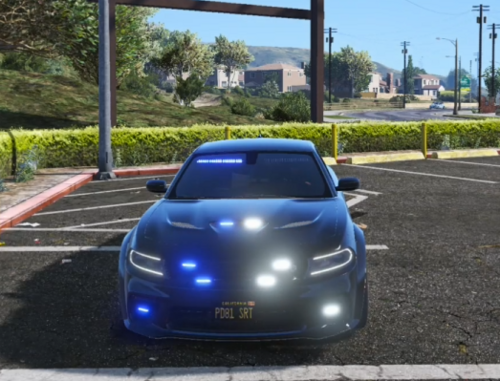
Barrie Police Service (2008) Chevrolet Tahoe made by Cantwell.

CREDITS:

2008 Tahoe by BxBugs123

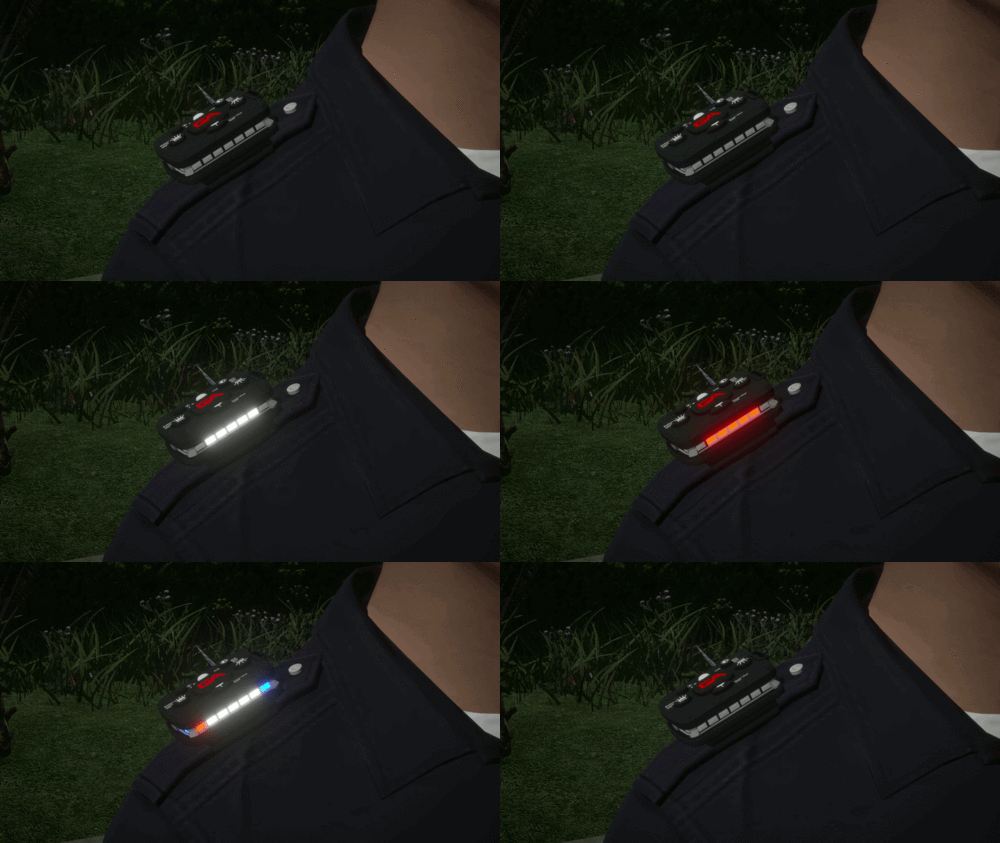
Whelen Talon by BxBugs123

Whelen LINZ6 by Master Yoda

Rockwell Collins Laptop by BxBugs123

User Feedback

Recommended Comments

Slimory

Members

Minimal Effort on the texture & from what I've been looking at for reference photos, none of their vehicles have mirror lights, even some of the new ones. 5/10

Cantwell

Members Author

If you can find me such reference photos of a TAHOE that would be much appreciated, because I sure as hell couldn't find them. I was going completely off of what my friends from Barrie told me from and they said it was accurate...

rcmpcarbon

Members

And you have these pictures how? There is no reference photos of the Tahoe.

Piarulli246

Members

That Talon is not supposed to be that scaled on the y-axis. Can use some work.

Slimory

Members

If you can find me such reference photos of a TAHOE that would be much appreciated, because I sure as hell couldn't find them. I was going completely off of what my friends from Barrie told me from and they said it was accurate...

UmbrellaCorp

Members

i really love this tahoe but id like to have all blue lights. u converted the commander lights file and erergmlights emt file like i have with all other els changes but the lights are still red/blue.. what am i missing?

Create an account or sign in to comment

Latest Mods

Account

Navigation

Search

Search

Configure browser push notifications

Chrome (Android)
  1. Tap the lock icon next to the address bar.
  2. Tap Permissions → Notifications.
  3. Adjust your preference.
Chrome (Desktop)
  1. Click the padlock icon in the address bar.
  2. Select Site settings.
  3. Find Notifications and adjust your preference.