





Hi guys,
I've been a little slow lately, but here is the ranger I promised some time ago now. This 2019 Ranger is a fictional recreation of a similar NSW Police Vehicle. As a FiveM ready resources, it is pretty much drag, drop, and play. The car has been equipped with a canopy and bull bar, along with my new NSW police GD lighting setup. Please note, that his model is around the 300k polly count.
Included in this download are the credits and the above screenshots.
Again, if you spot anything or have any feedback, I love hearing you CONSTRUCTIVE feedback. It helps me improve the models that I am making.
Massive thanks to all the supporters in my Discord, recently we passed 100 members, and I hope for many more to jump on board in the future.
Discord Link: https://discord.gg/dHQ728bjaY
Edited by Officer Scott. S
Some grammar changes.
Short Description
Light Bar - Kane104
Ranger Model - Blue Ghost
Bull Bar - Capone
Steel Wheels and tires - Mr Fui
Bumper LEDs - Yacobe
LB Antennas - Billy Bruv1
Configuring Lighting - Just Scott
Slapping Sh*t together - Just Scott

![[DLSv2][32 sirens][Add-On] 2020 FPIU | Advanced DLS Lighting Setup](http://s3-screenshots.int-cdn.lcpdfrusercontent.com/resize/500/-/monthly_2024_08/10.thumb.png.ce2ba254183c6260d262759ef1f5169a.png)

![Tennessee Highway Patrol EUP Pack [LSPDFR & FiveM Ready]](http://s3-screenshots.int-cdn.lcpdfrusercontent.com/resize/500/-/monthly_2026_05/Screenshot2026-05-10143621.thumb.png.106648bb54b942daaf8e26df88467cd4.png)

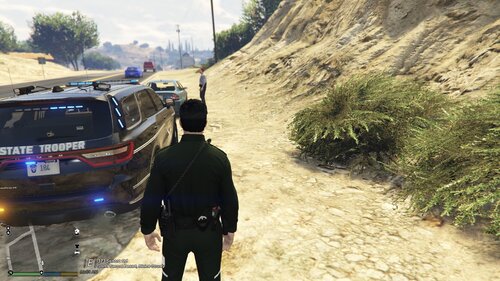
![[ELS][REPLACE] Volkswagen Transporter T6 - Czech Policie](http://s3-screenshots.int-cdn.lcpdfrusercontent.com/resize/500/-/monthly_2026_05/20260510164507_1.thumb.jpg.aef1db29050d914251fc0c541e207566.jpg)
![[ELS][REPLACE] Škoda Kodiaq Czech Police Pack - 3 Variations](http://s3-screenshots.int-cdn.lcpdfrusercontent.com/resize/500/-/monthly_2026_05/20260510160131_1.thumb.jpg.b60712c0fbf03fceec092a81392685d6.jpg)
Recommended Comments
Create an account or sign in to comment