Skip to content
View in the app

A better way to browse. Learn more.

LCPDFR.com

A full-screen app on your home screen with push notifications, badges and more.

To install this app on iOS and iPadOS
  1. Tap the Share icon in Safari
  2. Scroll the menu and tap Add to Home Screen.
  3. Tap Add in the top-right corner.
To install this app on Android
  1. Tap the 3-dot menu (⋮) in the top-right corner of the browser.
  2. Tap Add to Home screen or Install app.
  3. Confirm by tapping Install.

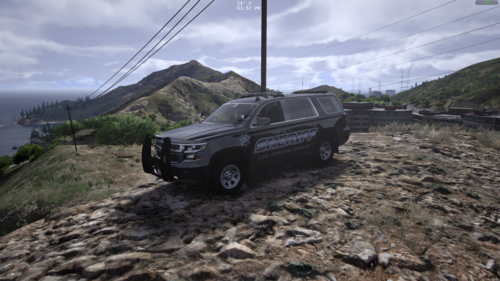
U.S Coast Guard 2012 F-150

(5 reviews)

4 Screenshots

U.S Coast Guard F-150 skin made by filmzy

This skin goes on

User Feedback

Recommended Comments

neuronightmare

Members

I don't think I've seen anything like this on here before, so bravo for creativity, but there are some things that need to be done to take it to the next level. This skin would really benefit from taking a little more time to fix some issues. The text on the door and rear of the vehicle where the text is cut off by the door handles and parts of the car would benefit from being repositioned. "Security" on the driver's side isn't capitalized and the "US Department of Homeland Security" isn't in the same spot on both sides and in my opinion could be spaced differently (maybe only put that on two lines instead of three so it doesn't seem so unbalanced with there only being 2 letters on the middle line, but this is only my opinion and may not be what you want to do). I'm sure there is also a way to edit the pushbar texture to remove the "Metro Police". That doesn't really line up with it being a federal LE vehicle. Some people may say these things are kind of nitpicky, but that's what I look at when deciding which skin to use. These are really simple and quick fixes that would make this that much better and make you an even better skin designer in the future.

hul123

Members

U.S.C.G. METRO POLICE OOORAH, lol needs some work but nice job!

Create an account or sign in to comment

Account

Navigation

Search

Search

Configure browser push notifications

Chrome (Android)
  1. Tap the lock icon next to the address bar.
  2. Tap Permissions → Notifications.
  3. Adjust your preference.
Chrome (Desktop)
  1. Click the padlock icon in the address bar.
  2. Select Site settings.
  3. Find Notifications and adjust your preference.