Skip to content
View in the app

A better way to browse. Learn more.

LCPDFR.com

A full-screen app on your home screen with push notifications, badges and more.

To install this app on iOS and iPadOS
  1. Tap the Share icon in Safari
  2. Scroll the menu and tap Add to Home Screen.
  3. Tap Add in the top-right corner.
To install this app on Android
  1. Tap the 3-dot menu (⋮) in the top-right corner of the browser.
  2. Tap Add to Home screen or Install app.
  3. Confirm by tapping Install.

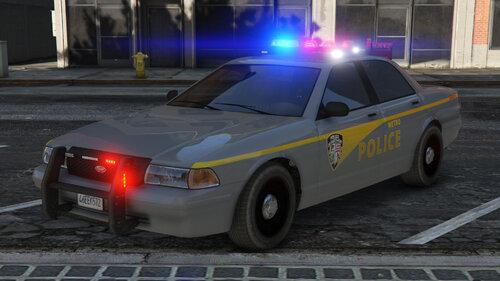
21 Taurus (Indianapolis Metropolitan Unit) [TEXTURE] 1.0.0

(0 reviews)

4 Screenshots

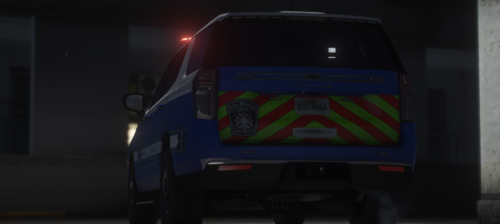
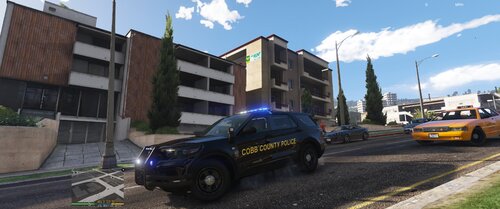
This should work on any Taurus Code 3 or not. Feel free to use it in any servers or lspdfr.


I am taking any recommendations for vehicle liveries and almost all request so feel free to leave a comment with a livery you would like to see!

Edited by Pubs


Short Description

Redsaint 21 Code 3 Taurus

User Feedback

Recommended Comments

Hadyfaik

Members

Looks nice!

Pubs

Members Author

34 minutes ago, Hadyfaik said:

Looks nice!

Thank you!!

NPDEXPLORER6178

Members

You forgot the pinstripe

Pubs

Members Author

2 hours ago, NPDEXPLORER6178 said:

You forgot the pinstripe

hmmm, i didnt see it in any of the pictures i looked at.. Where is it on vehicle?

NPDEXPLORER6178

Members

(edited)

2 hours ago, Pubs said:

hmmm, i didnt see it in any of the pictures i looked at.. Where is it on vehicle?

The line is right under the window, there is also thin lines in the doors.

It is all marked in red.

also badghe needs to be higher, after that it will be perfect.

image.thumb.png.b8a8d4be5c131a2e6caad4ad2db69a6e.png

Edited by NPDEXPLORER6178

Patriotsfan424

Members

18 hours ago, NPDEXPLORER6178 said:

You forgot the pinstripe

Definitely this, and I think that the badge sits a bit too low on the doors, but other than that it looks good!

Create an account or sign in to comment

Account

Navigation

Search

Search

Configure browser push notifications

Chrome (Android)
  1. Tap the lock icon next to the address bar.
  2. Tap Permissions → Notifications.
  3. Adjust your preference.
Chrome (Desktop)
  1. Click the padlock icon in the address bar.
  2. Select Site settings.
  3. Find Notifications and adjust your preference.