Skip to content
View in the app

A better way to browse. Learn more.

LCPDFR.com

A full-screen app on your home screen with push notifications, badges and more.

To install this app on iOS and iPadOS
  1. Tap the Share icon in Safari
  2. Scroll the menu and tap Add to Home Screen.
  3. Tap Add in the top-right corner.
To install this app on Android
  1. Tap the 3-dot menu (⋮) in the top-right corner of the browser.
  2. Tap Add to Home screen or Install app.
  3. Confirm by tapping Install.

Liberty State Trooper 2012 Charger and 2011 Tahoe Hi DEF TEXTURES 1.0

(8 reviews)

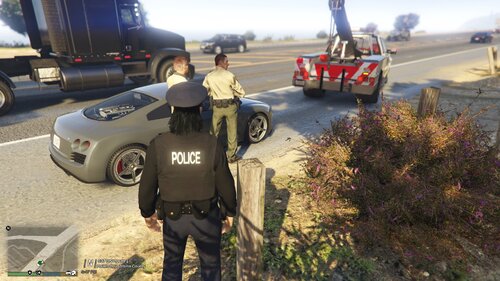
4 Screenshots

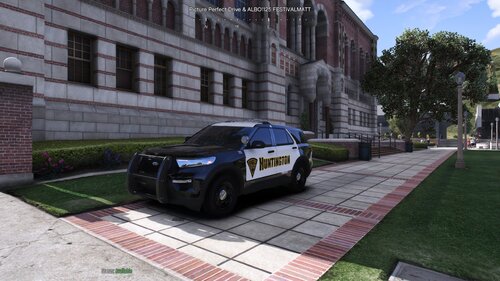
Fictional LCPD skins for state troopers, Textures are in a higher quality than 90% of skins you will see on this website so file may be larger than normal. For example take a look at the license plates and you will see beveled "raised" text, and even license plate screws for added realism. Also you will find tweaked ELS textures and window textures to get the right balance of tinted windows while retaining extra bright police lights for the Tahoe. Feedback welcome.

What's New in Version 1.0

Released

  • Initial release.

User Feedback

Recommended Comments

SCSDDeputy

Members

Im not really seeing the "HI DEF" in this texture... maybe its just me...

bonehead

Members

how does one make a "HI DEF" texture to begin with.... there is good textures and there are bad ones thats about it

str8wick3d

Members Author

All I'm meaning by hi def is that their is a high attention to detail, meaning any logos will have clear readings regardless of how scaled down they are, and their is no low quality cut and pasting. No short cuts. Please don't hate.

Hoffers

Members

Rep for you bonehead, You are a wise man ;D

KShark

Members

Link to models?

OfficeMerc105

Members

Everyone keep using the City of Liberty Police department logo, this is the

Jonxthxn

Members

Got a link to the 2012 charger?

Create an account or sign in to comment

Latest Mods

Account

Navigation

Search

Search

Configure browser push notifications

Chrome (Android)
  1. Tap the lock icon next to the address bar.
  2. Tap Permissions → Notifications.
  3. Adjust your preference.
Chrome (Desktop)
  1. Click the padlock icon in the address bar.
  2. Select Site settings.
  3. Find Notifications and adjust your preference.