Skip to content
View in the app

A better way to browse. Learn more.

LCPDFR.com

A full-screen app on your home screen with push notifications, badges and more.

To install this app on iOS and iPadOS
  1. Tap the Share icon in Safari
  2. Scroll the menu and tap Add to Home Screen.
  3. Tap Add in the top-right corner.
To install this app on Android
  1. Tap the 3-dot menu (⋮) in the top-right corner of the browser.
  2. Tap Add to Home screen or Install app.
  3. Confirm by tapping Install.

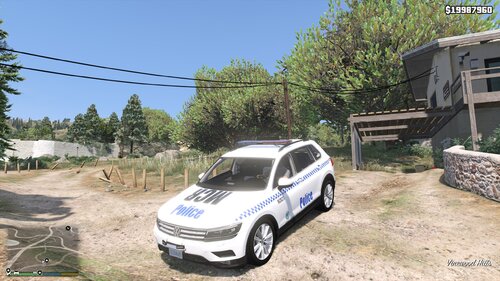
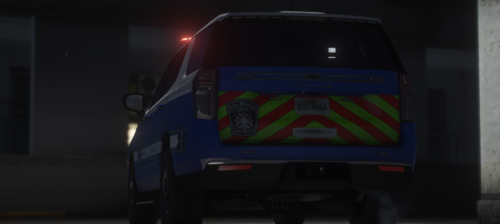
DFES Livery for Holden Colorado 1.1

(0 reviews)

3 Screenshots

DO NOT REDISTRIBUTE THIS SKIN ANYWHERE WITHOUT MY PERMISSION

First livery I've decided to release so enjoy 😄 there may be more coming, idk yet.

If Macgregor allows you to use his model in an LSPDFR video or FiveM server feel free to use this livery with it.

Macgregor's Holden Colorado:

Any issues please leave in comments, not reviews.


Feel free to suggest any cars or trucks for me to skin, whether or not I do it is if I like the model you have chosen 😉

Edited by Sup3r Ny00m
Change to title

What's New in Version 1.1

Released

What's new huh? The actual skin is new in this version because I accidentally posted an empty folder XD


Short Description

DFES Fire Support Unit

User Feedback

Recommended Comments

OblongGaming

Members

Hey @Sup3r Ny00m


just thought i'd let you know, when i go to download the dfes colorado texture and i then go to extract the folder, it comes up with an error, stating that their is no file inside


R0ZETTV

Members Author

On 7/4/2021 at 10:24 PM, OblongGaming said:

Hey @Sup3r Ny00m


just thought i'd let you know, when i go to download the dfes colorado texture and i then go to extract the folder, it comes up with an error, stating that their is no file inside


Thanks for letting me know mate, I'll get onto that immediately

R0ZETTV

Members Author

8 hours ago, Hadyfaik said:

Model is nice and the livery matches it 👍

Props to Macgregor for that one

Create an account or sign in to comment

Account

Navigation

Search

Search

Configure browser push notifications

Chrome (Android)
  1. Tap the lock icon next to the address bar.
  2. Tap Permissions → Notifications.
  3. Adjust your preference.
Chrome (Desktop)
  1. Click the padlock icon in the address bar.
  2. Select Site settings.
  3. Find Notifications and adjust your preference.