




This livery is recommended for the Unmarked Blue Ghost Silverado.
INSTALATION:
When you install this Zip file, you need to open it and open up your Open IV. Click Grand Theft Auto Five: Windows.
Turn on edit mode.
Then when that is done go to: mods/update/x64/dlcpacks/blueghostpack/dlc.rpf/x64/vehicles.rpf
Once you have located the Pathway I have provided. Scroll all the way down and look for silvp.ytd this is the texture file you need to open in order to put the Vehicle Texture on. Make sure that you back up this silvp_ytd file. If you dont, can't say that you will be finding yourself download anymore. Just make sure that you have the original ytd file. If you want to revert back to the unmarked version of the pack.
Then scroll all the way down until you find silver_sign_1
Click on that, and make sure edit mode is on! Or else it will not work.
Click replace and locate the zip file that you just downloaded for the livery. Then click the new silvp.ytd file and then press open then save then your all done and you can launch your game!!
1 Screenshot
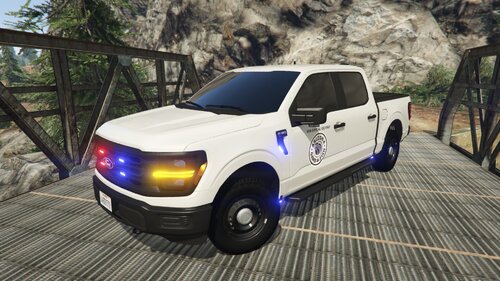
Saint Cloud police livery for the State of Florida. Silverado for the BlueGhost pack.
I am credited.



![[FiveM Ready] Fictional Gang Unit - Texture](http://s3-screenshots.int-cdn.lcpdfrusercontent.com/resize/500/-/monthly_2026_07/photo1.thumb.png.baa30090528225eddf2d3fee60afb3b2.png)



Recommended Comments
Create an account or sign in to comment